

Transcript: How to add approvals for transactions in Meridian Business Online Banking
[Screen shows the Meridian Business Online Banking dashboard. The navigation bar is visible at the top, with options such as Home, Accounts, Transfers, Payments, and Admin.]
Narrator: If you would like to add approvals required for transactions made through online banking, such as bill payments, transfers, Interac e-Transfers, or wires, this can be added to your profile by any administrator in online banking.
[Visual: Cursor highlights the menu tabs as each is mentioned.]
Narrator: You may wish to add this feature if you have a two-to-sign account, however, please note it's not required.
[Screen zooms in on the Admin tab.]
Narrator: First, start by going to the Admin tab, then select Maintenance, then User Maintenance.
[Visual: Admin tab is selected, a dropdown appears, with the Maintenance option being clicked. The User Maintenance page loads.]
Narrator: Beside your name or the user you wish to update, select Edit in the drop-down menu to the right.
[Visual: Mouse clicks on the "Edit" option next to a user’s name.]
Narrator: Scroll down to the Permissions field. You will see the transaction permissions associated with the business group already checked off, along with the appropriate limits.
[Visual: The Permissions section is shown, with checkboxes and fields for limits.]
Narrator: In the Approvals Required column, enter in how many approvals you would like for each transaction type.
[Visual: The Approvals Required column is visible, with editable fields.]
Narrator: The last column, Approval Limit, is your limit to approve other administrator or user's transactions.
[Visual: The Approval Limit column is highlighted.]
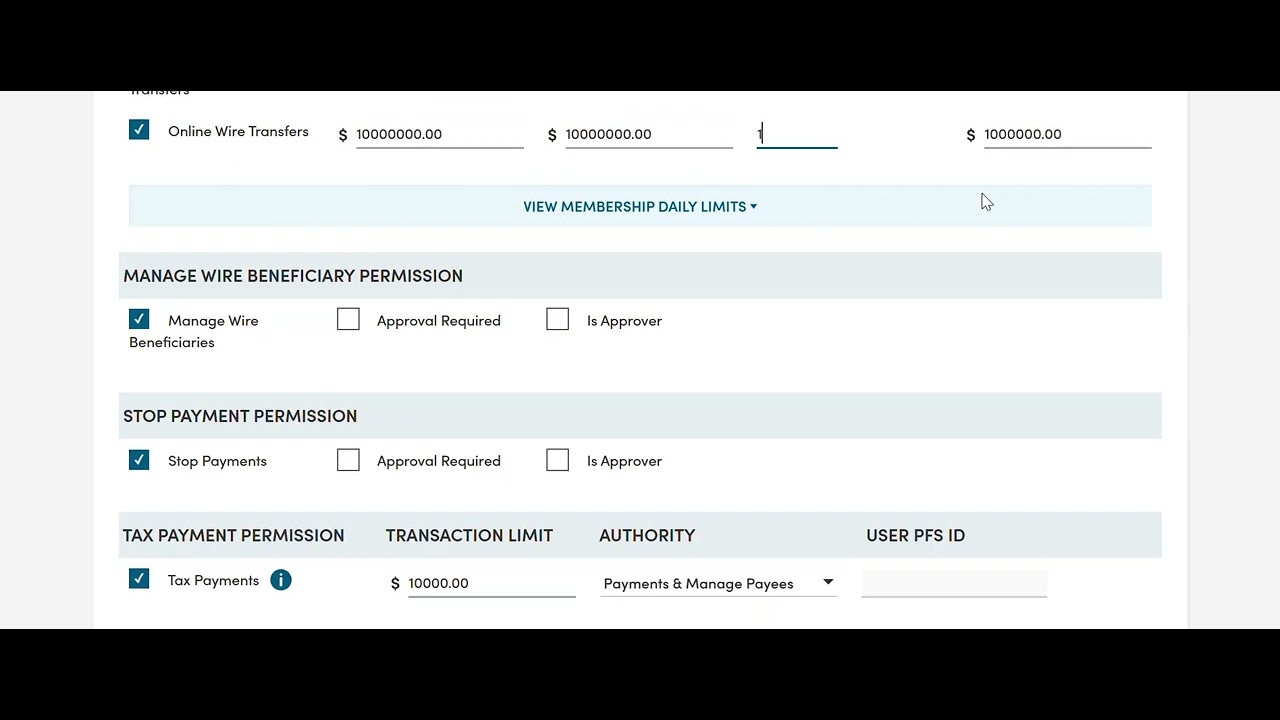
Narrator: Under the Manage Wire Beneficiary Permissions, you are able to add approvals required here, and also give this administrator or user the ability to be an approver. The same is allowed for stop payments.
[Visual: The Manage Wire Beneficiary Permissions section is shown. Fields for approvals and approver status are visible.]
Narrator: Please note, approvals required for tax payments apply to the whole business group, and this option would have been requested on your Business Online Banking application and completed by Meridian.
[Visual: Information icon is clicked, showing a tooltip about tax payments.]
Narrator: If you are unsure if your business group is set up for approvals required on tax payments, or if you would like to add this, please call our support team at 1-866-592-2226 at option 3.
[Visual: Phone number and contact details appear on screen.]
Narrator: Once you have completed all the fields you wish to update, select Save. This will bring you to a confirmation page. Scroll down to the bottom where a comment is required. Then select Confirm.
[Visual: Save button is clicked, confirmation page appears with a required comments field at the bottom. User types a comment and clicks Confirm.]
Narrator: Your request has now been successfully completed.
[Screen shows a success message.]
Narrator: In order for the changes to take effect, you must sign out and sign back in. However, if your business group requires one or more administrative approvals, this will go in a pending state and another administrator will need to sign in and approve this update in the Admin tab.
[Visual: Message displays: "Pending approval".]
Narrator: If additional administrators or users also require approvals for their transactions, repeat the process again under their own profiles to update them.
[Screen shows a summary table with users and their updated approval settings.]
Narrator: For additional support with your Business Online Banking platform, please contact our support team at 1-866-592-2226 at option 3, Monday to Friday, 8:30am to 5pm. Or you can reach us at [email protected]. Thanks for watching.
Read the transcript for the video guide on how to add approvals for transactions in Meridian Business Online Banking