

Transcript: How to add users to your Meridian business online banking account
[Screen displays the business online banking dashboard. The cursor moves to the “Admin” tab in the top right corner.]
Narrator: An administrator may create users to access your business online banking account. Administrators have full access over a user's profile and can personalize the permissions given to every user.
[Cut to a close-up of the cursor clicking on the “Admin” tab. A drop-down menu appears.]
Narrator: To create a new user profile, start with going to the Admin tab at the top right-hand side of the screen.
[Cursor clicks on “Maintenance,” then on “User Maintenance.” The screen now shows the User Maintenance section with the option to “Add a New User.”]
Narrator: You will then click on Maintenance and then User Maintenance. Here you will find Add a New User.
[Form to add a new user appears on screen.]
Narrator: You are going to fill in all the start fields. Make sure to enter in a security code word. The security code is used at our telephone support line to verify the individual calling.
[Visual emphasizes the “Security Code Word” field. Onscreen text reinforces this detail.]
Narrator: Then, finally, click on Generate Temporary Password. Please ensure that you give your new user their security code word, user ID, and password.
[Cursor clicks "Generate Temporary Password" button. Notification appears “Password generated.”]
Narrator: Next, you are going to fill out the banking permissions you wish to provide the user with.
[Screen shows various permission checkboxes.]
Narrator: To view your business membership permissions and limits, you are going to click on View Membership Daily Limits. From there, you can fill out the following.
[Cursor highlights the “View Membership Daily Limits” link. A pop-up displays daily limits.]
Narrator: Please note that the limits can be the same or below the membership daily limits. They can never exceed them.
[User enters daily limits for the new user.]
Narrator: If your user is going to require an approval, you can enter it in this box here.
[Cursor highlights “Approval required” field. Typing sound as sample info is entered.]
Narrator: Next, you are going to see the Wire, Stop Payment, Tax Payment, and Interac e-Transfer auto-deposit permissions. You may select the ones that this user will have access to.
[Cursor ticks various permission checkboxes.]
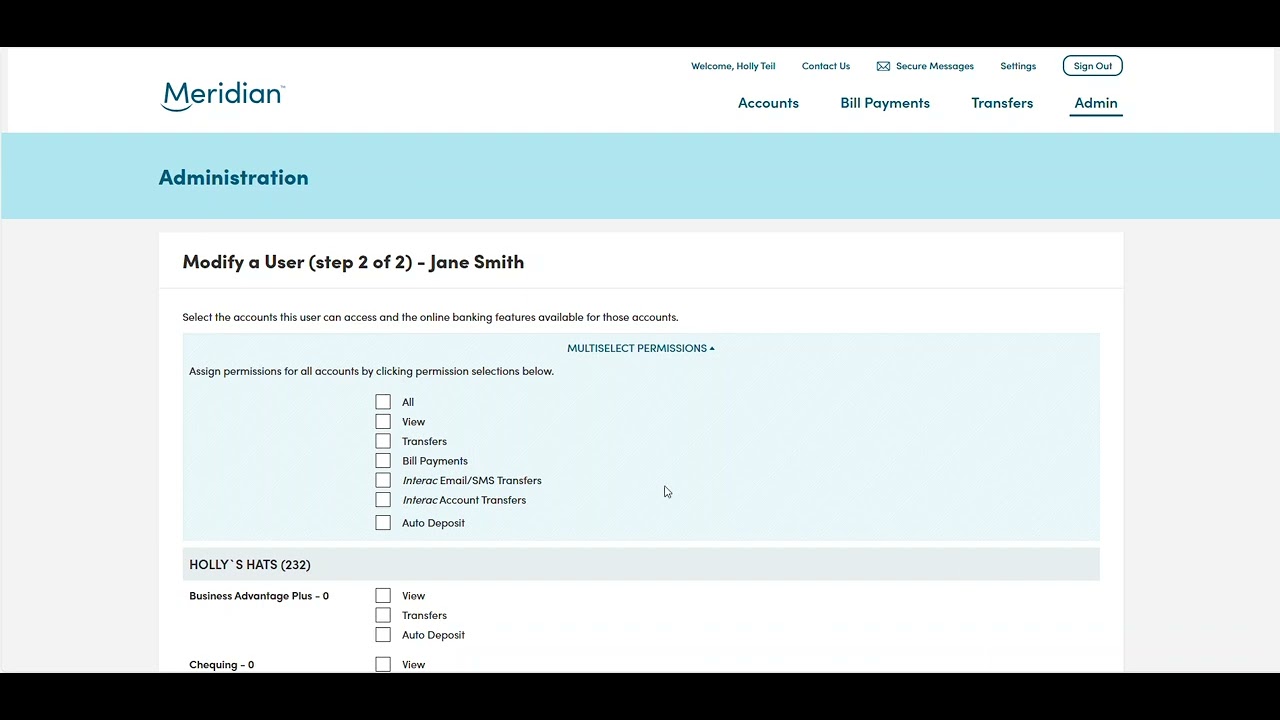
Narrator: Once you have completed this, please select Account Access.
[Clicks on “Account Access” tab. A list of all accounts appears.]
Narrator: This page will list every account connected to your business group's online banking. You may select All at the top if you wish to provide the user with access to all of your accounts.
[Cursor clicks “Select All” checkbox.]
Narrator: Or, you can scroll through the list and individually check off each account and permission.
[User scrolls through, selecting individual accounts.]
Narrator: Scroll all the way to the bottom and hit Save.
[Cursor clicks the “Save” button.]
[Confirmation page appears with a comments field at the bottom.]
Narrator: Now, you will be at the confirmation page. Please scroll down to the bottom where a comment is required. Enter in what you have submitted, such as adding a new user. You may include their name here if you wish.
[User types a comment: “Adding a new user: John Smith.”]
Narrator: Once a comment is entered, please ensure you hit Confirm.
[Cursor clicks “Confirm.”]
Narrator: If your business group requires one approval or more for admin tasks, then this request will be in an Update in Progress. Another administrator will need to sign in and approve the new user in the Admin tab.
[Screen shows “Update in Progress” status.]
Narrator: If no approval is required, then your new profile has been completed.
[Screen update: “User profile created successfully.”]
Narrator: For any additional support with your business online banking platform, please contact our support team at 1-866-592-2226 at option 3. We are open Monday to Friday, 8:30 am to 5:00 pm, or you can reach us at [email protected]. Thanks for watching!
Read the transcript for the video guide on how to add users to your Meridian business online banking account.