

Transcript: How administrators manage user access in Meridian Business Banking
[Cut to screen recording of the Business Online Banking platform, showing the navigation menu.]
Narrator: Administrators have the ability to unlock, generate temporary passwords, and reset challenge questions for other administrators or users.
[Screen shows the cursor moving to the "Admin" tab and clicking it. The menu expands.]
Narrator: Start by going to the Admin tab.
[Cursor clicks on "Maintenance," then selects "User Maintenance" from the dropdown menu.]
Narrator: You will click on Maintenance, and then User Maintenance.
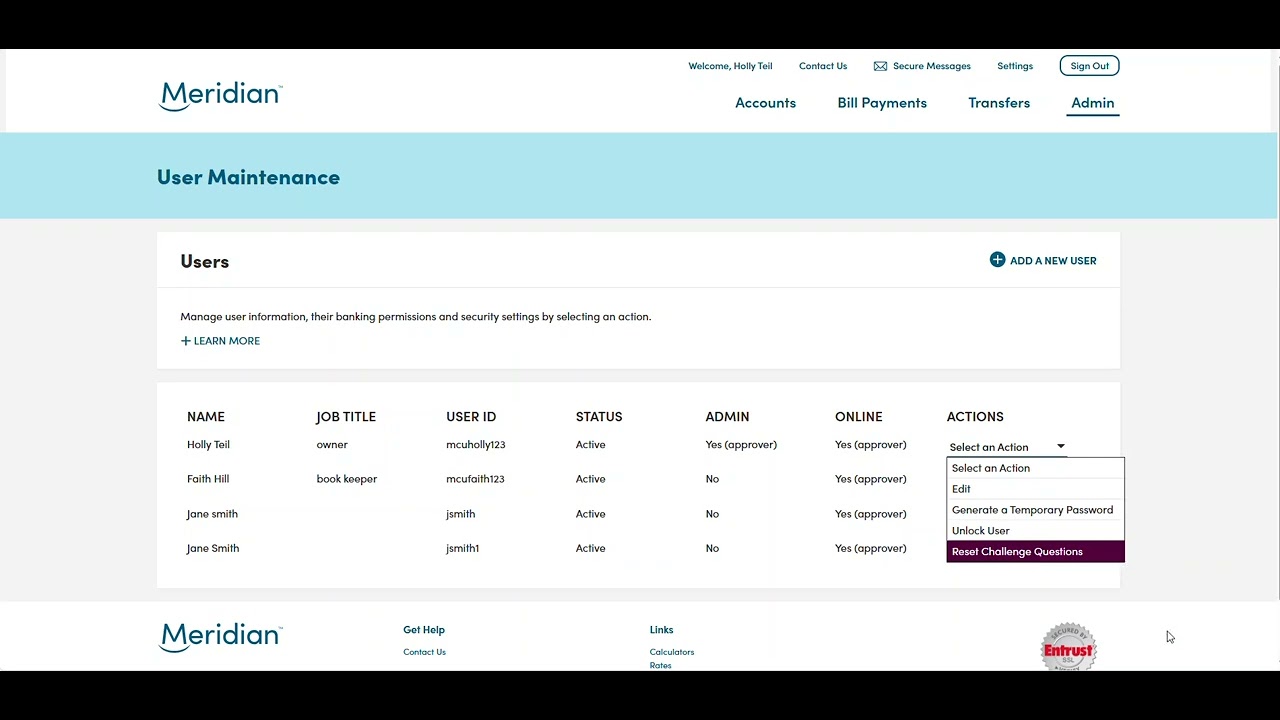
[The user profile list appears on the right side of the platform interface. Each profile has a "Select an Action" dropdown menu.]
Narrator: To the far right of each administrator or user profile, you will see "Select an Action" with a drop-down menu.
[Cursor clicks on the dropdown, revealing options: Generate a Temporary Password, Unlock User, Reset Challenge Questions.]
Narrator: Here you will see Generate a Temporary Password, Unlock User, and Reset Challenge Questions.
[Text on screen: For additional support with your Business Online Banking platform, please contact our support team at 1-866-592-2226, option 3, Monday to Friday, 8:30 a.m. to 5 p.m., or you can reach us at [email protected].]
Narrator: For any additional support with your business online banking platform, please contact our support team at 1-866-592-2226 at option 3. We are open Monday to Friday, 8:30 am to 5:00 pm, or you can reach us at [email protected]. Thanks for watching!
Read the transcript for the video guide on how administrators manage user access in Meridian Business Banking.