

Transcript: How to register to receive Interac e-Transfers® in Meridian Business Banking
[The screen shows a computer displaying the Meridian online banking dashboard. The mouse pointer moves to the top right corner.]
Narrator: To receive Interac eTransfers, first you must register a profile with Interac in your online banking.
[The cursor clicks on the "Admin" tab in the top right-hand corner.]
Narrator: Click on the Admin tab in the top right-hand corner of your screen.
[The cursor selects "Maintenance" from a dropdown menu.]
Narrator: Then select Maintenance.
[The cursor selects "Interac eTransfer Profile" from another menu.]
Narrator: Now select Interac eTransfer Profile.
[A dropdown menu appears on screen with possible membership options.]
Narrator: Select the membership you wish to register in the drop-down menu. If you only have one membership connected to your online banking, it will automatically be selected.
[The screen shows fields for email address and phone number. The user types information into the fields.]
Narrator: Enter in the email address and phone number you wish to be notified by, and then in the drop-down select how you would like to receive your notifications.
[A “Save” button is clicked.]
Narrator: Once you select Save, your profile will be completed.
[The cursor moves to select the “Transfers” tab at the top right.]
Narrator: Then, to register your Autodeposit, select the Transfers tab in the top right-hand corner of your screen.
[The menu expands. The cursor selects “Interac eTransfers”. Then selects “Manage Autodeposit”.]
Narrator: Then select Interac eTransfers. Next, select Manage Autodeposit.
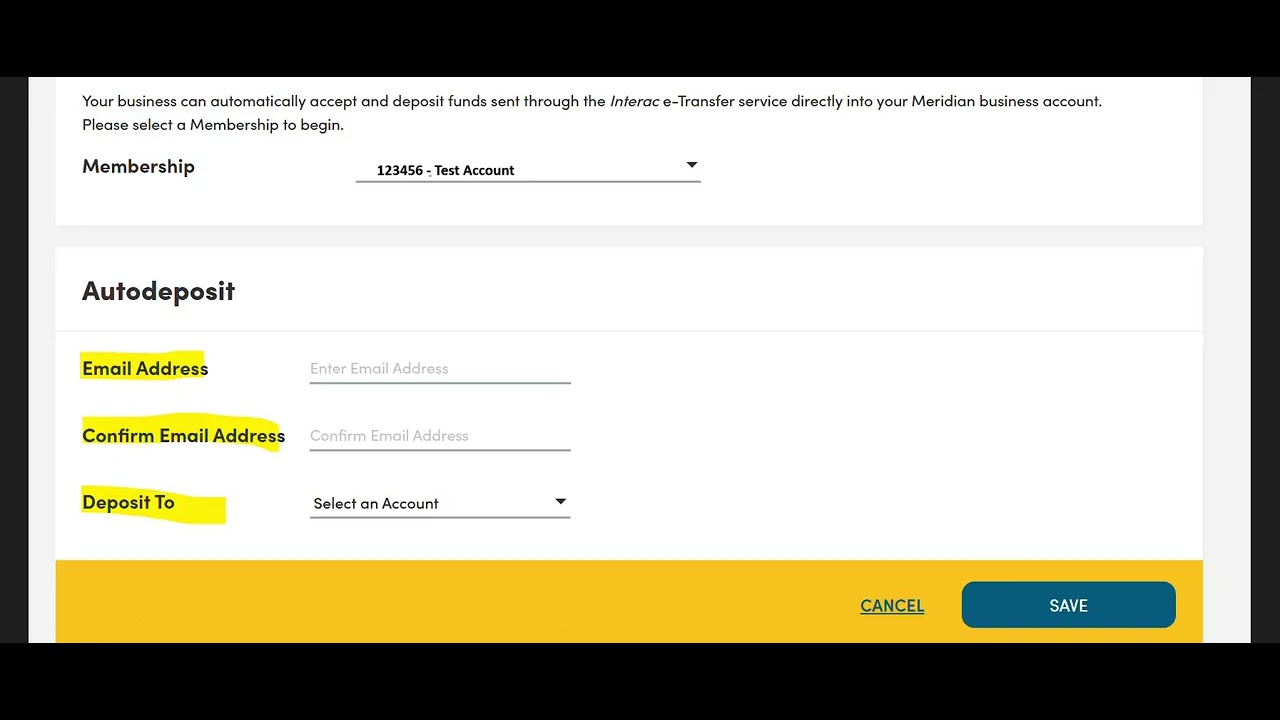
[Membership selection screen is shown, similar to earlier.]
Narrator: Select the membership in the drop-down menu you wish to register. If you only have one membership listed in online banking, it will automatically be selected here.
[The cursor clicks the pen and paper icon next to an email field.]
Narrator: Select the pen and paper icon to configure your email address.
[The user types in an email address and selects an account from a dropdown list.]
Narrator: Enter in the email address you wish to use for Autodeposit, and select the account you want the funds to be deposited to.
[On-screen notice: You cannot use this email for multiple Interac accounts.]
Narrator: Please note that all eTransfers sent to this email will be automatically deposited into this account, so you cannot use this email for any additional accounts with Interac.
[The “Save” button is clicked. On-screen message indicates a pending status.]
Narrator: Once you select Save, it will now be in a pending state.
[Cut to visual of an email inbox. An unread email from Interac arrives.]
Narrator: Please open that email address and you should have received an email from Interac instructing you to complete your registration. You should receive the email address within a few minutes of registering.
[On-screen instructions to check junk/spam folders.]
Narrator: If you do not, please ensure you check your junk or spam folders.
[Visual of someone dialing a phone.]
Narrator: If you still do not receive the automatic email from Interac, please call our support team at 1-866-592-2226 at option 3.
[Cut back to computer screen showing the email being opened and registration confirmed.]
Narrator: Once you have confirmed your registration email from Interac, you will now have an active profile.
[On-screen message: "Auto Deposit enabled."]
Narrator: Going forward, all eTransfers sent to this email address will be automatically deposited into your account and you will receive an email notification.
[Warning on screen: Existing eTransfers may need to be resent.]
Narrator: Please note if you had any eTransfers sent to you before you completed these steps, the sender will need to either resend the notification, or potentially cancel and resend the funds, now that your profile is active.
[Instructions summarize the process for multiple memberships.]
Narrator: For additional memberships, please follow the above steps again, starting with a profile and then registering for auto-deposit.
Narrator: For any additional support with your business online banking platform, please contact our support team at 1-866-592-2226 at option 3. We are open Monday to Friday, 8:30 am to 5:00 pm, or you can reach us at [email protected]. Thank you for watching!
Transcript for the video guide for help registering to receive e-Transfers in Meridian Business Banking.