

Transcript: How to send an Interac e-Transfer® in Meridian Business Banking
[Screen displays the Online Banking dashboard. The cursor moves to the top right-hand corner, selecting the "Admin" tab.]
Narrator: To send an outgoing e-transfer, first please ensure you have registered your two-factor authentication for security purposes. To complete this, contact our support team at 1-866-592-2226, option 3.
[Screen shows step-by-step navigation: Admin > Maintenance > Interac e-Transfer Profile]
Narrator: Additionally, you will need to have a profile registered with Interac. This only needs to be completed by one administrator from your business group for each membership.
[Visual: A drop-down menu with membership information appears]
Narrator: To create your profile, select the Admin tab in the top right-hand corner of your screen. Then select Maintenance, and then go to Interac e-Transfer Profile.
[Cursor selects a membership from the drop-down or shows the field prefilled]
Narrator: Select the membership in the drop-down menu you wish to register, or if you only have one membership connected to online banking, this will automatically be prefilled.
[Fields for email, phone number, and notification method are visible]
Narrator: Next, enter in your email address and phone number, and how you would like to receive notifications. Then select Save.
[User clicks Save; confirmation appears onscreen]
Narrator: Now that your profile has been registered and your two-factor authentication is activated, to send an Interac e-Transfer, you will start with creating your recipient.
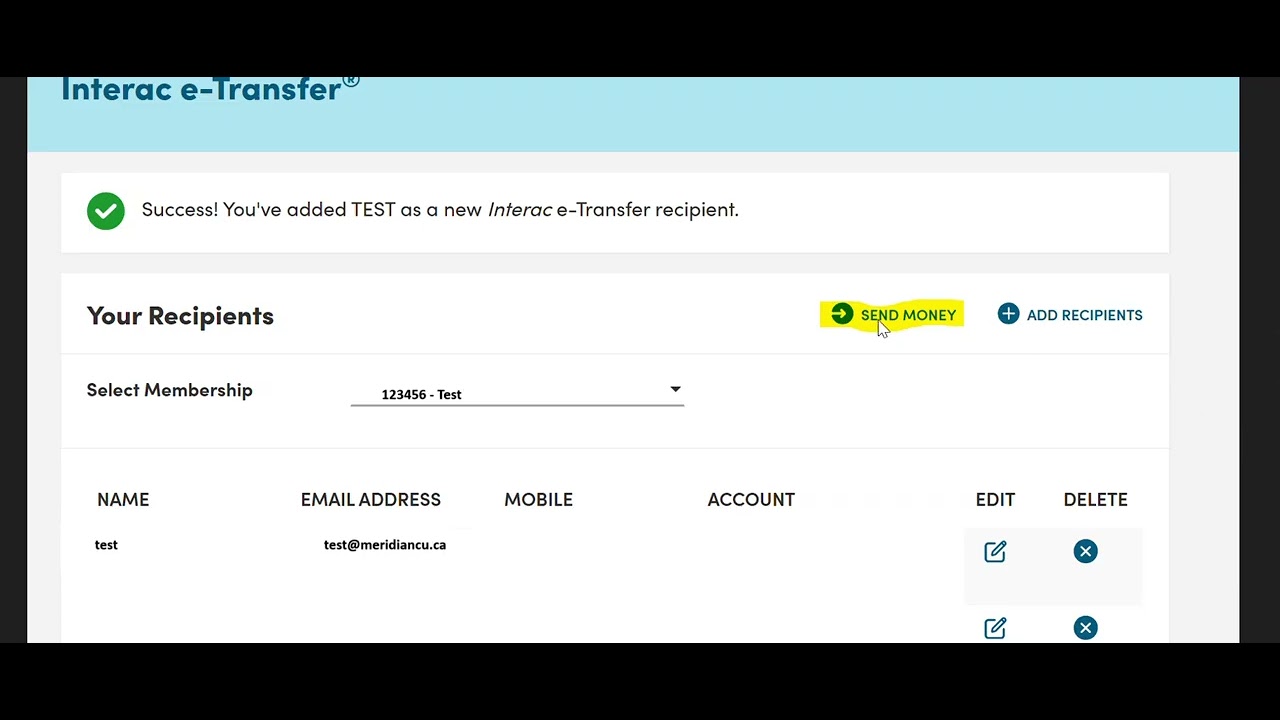
[Cursor moves to “Send Money” button and clicks.]
Narrator: You can select the Send Money button to the right, or go to the Transfers tab in the top right-hand corner of your screen. Then select Interac e-Transfer.
[Screen displays Add/Edit Recipients. Cursor clicks "Add Recipients."]
Narrator: Select Add/Edit Recipients. Select Add Recipients again.
[Membership drop-down appears; user selects it or confirms it's prefilled.]
Narrator: Select the membership in the drop-down menu you wish to create the recipient with, or if you only have one membership associated with your online banking, this will be prefilled here.
[Recipient information form appears: name, email, phone (optional), notification method drop-down]
Narrator: Enter in your recipient’s information, such as their name, their email address, and if you have provided one, a telephone number. Then select in the drop-down menu how you would like to send notifications.
[Option highlighted: Email/Mobile]
Narrator: If you are doing an email transfer, select the first option here, Email/Mobile.
[Security question and answer field displays]
Narrator: You will enter in a security question and the answer. Please note, if the individual is set up with Autodeposit, you’ll be notified when you go to send the funds, and your question will not be required.
[Transfer type menu: selects Bank Account Number]
Narrator: If you would like to send a transfer directly to an account number, select the Bank Account Number option for your transfer type.
[Fields displayed: transit number, institution number, account number]
Narrator: Enter in the transit number, institution number, and account number. We highly recommend that you get a direct deposit form from your recipient to ensure that you have the correct details.
[Cursor clicks Review, then clicks Save after reviewing]
Narrator: After you have completed all the fields, you can select Review, ensure that you have everything entered in correctly, and select the Save button.
[Return to main e-Transfer page. User clicks “Send Money.”]
Narrator: Now that your recipient has been added, you can select the Send Money tab.
[Drop-down for membership appears, then recipient, then account selection, then amount field]
Narrator: First, select your membership in the drop-down menu, or this will be prefilled if you only have one membership associated with online banking. Select your recipient in the drop-down menu, select the account you would like the funds to come from, enter in the amount you wish to send.
[Notification: Autodeposit is enabled or not]
Narrator: If this individual is connected through Autodeposit, this will be where it will notify you and a security question will not be required. If they’re not set up for Autodeposit, you will select your security question based on the one you have created for the recipient.
[Additional message field appears]
Narrator: You can enter in a message with additional information, or if you need to add in transfer details, you can select the Yes button. If nothing further needs to be added, select No.
[Next button is clicked]
Narrator: Then select the Next button.
[Two-factor authentication prompt appears; phone or app notification received]
Narrator: You will now be prompted to enter in your six-digit authorization code. You will either receive a text message with your six-digit code, or if you are set up with a Twilio Authy app, there will be one generated in the app.
[Field for six-digit code entered, then Next selected]
Narrator: After you have entered in your six-digit code, select Next.
[On-screen text/info: Approval required notice (for businesses with approval workflow)]
Narrator: If your business requires an approval for outgoing e-transfers, then you will not be required to enter in a six-digit code at this time. The transaction will go in a pending state, and the administrator or user who approved the transaction will be required to enter in their six-digit two-factor authentication code at that time.
[Screen highlights Interac service fee information]
Narrator: Please note, the service fee from Interac will automatically be added to your payment amount.
Narrator: For any additional support with your business online banking platform, please contact our support team at 1-866-592-2226 at option 3. We are open Monday to Friday, 8:30 am to 5:00 pm, or you can reach us at [email protected]. Thanks for watching!
Read the transcript for the video guide on how to send an Interac e-Transfer® in Meridian Business Banking.