

Transcript: How to submit government or WSIB payments in Meridian Business Banking
[Screen displays the homepage of the Meridian Credit Union online banking platform. The cursor moves to the top right and clicks the “Bill Payment” tab.]
Narrator: To submit a Government Tax or WSIB payment, please first select the Bill Payment tab in the top right-hand corner of your screen.
[Cursor selects “Tax Payments” from a dropdown menu, then clicks “Continue to Tax Payments.”]
Narrator: Next, select Tax Payments. Then continue to Tax Payments. Here it will advise you on your individual tax payment limit for your business.
[On-screen text shows a business tax payment limit with a note about contacting support for increases.]
Narrator: Please note, if you need to process a tax payment that exceeds your business group limit, please contact our support team at 1-866-592-2226, option 3 to request a temporary increase. Your tax payment limit will need to be increased by Meridian before you submit your payment to be processed successfully.
[Cursor clicks “Continue” to enter the Tax Payment Portal.]
Narrator: Once you are ready, select Continue to be redirected to the Tax Payment Portal.
[A message appears about payment timing.]
Narrator: Please note that all government payments take one business day to process, therefore you are not able to make same-day payments.
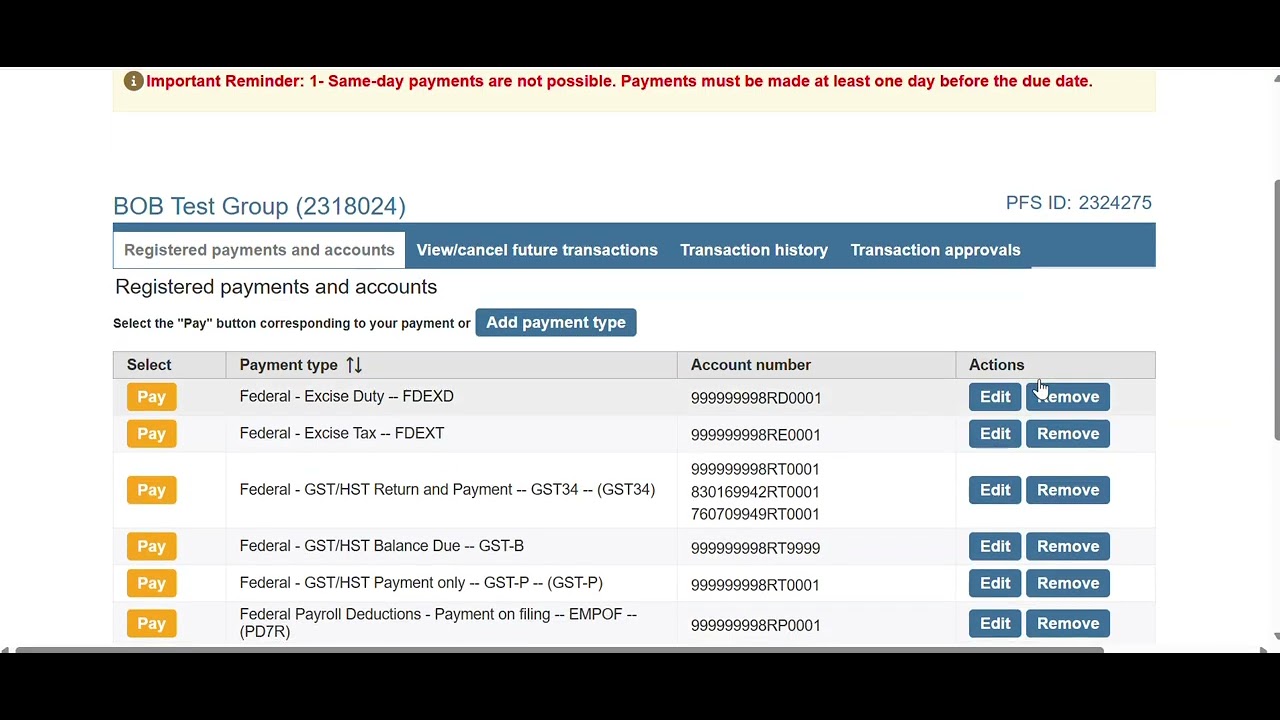
[Screen shows the Tax Payment Portal dashboard.]
Narrator: If this is your first time making a payment, start by selecting Add Payment Type.
[Cursor clicks “Add Payment Type.” A search form appears with filter categories.]
Narrator: You can filter the search criteria by selecting a category. WSIB will be found under the Compensation and Insurance Board. Federal tax will include options such as GST and payroll deductions. Financial tax will also include WSIB for your province as well as Ontario Corporation tax.
[A list of payment types appears. Cursor selects a payment type and clicks “Next.”]
Narrator: Once you’ve selected the payment type you would like to add, select Next at the bottom of your screen.
[Screen displays a form for entering payment details, with fields matching a sample CRA invoice.]
Narrator: You will then fill in the required information, which will be found on your CRA invoice from WSIB. If you are missing any required information, please contact these services.
[Dashboard now features the newly added payment type listed on the home screen.]
Narrator: After your payment type has been added, it will now show on your home screen, listed here.
[Cursor hovers over the “Pay” button for a payment type and clicks.]
Narrator: When you are ready to make a payment, select the Pay button associated with your payment type.
[A dropdown shows multiple account numbers for GST.]
Narrator: If you have multiple account numbers associated with one payment type, such as this GST option, you will be able to select the corresponding account number after you select Pay.
[Screen shows payment amount and date entry form.]
Narrator: Once you have entered in all of your information for your payment, you will be brought to a confirmation page where you are able to print a receipt.
[Confirmation page displays with printable receipt option. Cursor clicks “Submit.”]
Narrator: After your payment has been submitted, if your business group requires one approval, it will be put in a pending status.
[An “Admin Approval Required” message appears.]
Narrator: Your administrator will need to sign in and approve the payment under the Transaction Approvals. The transaction must be approved the same day a payment is submitted or before the due date if you have entered a future dated payment.
[Screen displays “Pending” and “Expired” status examples.]
Narrator: If a payment is not approved prior to the due date, it will become expired and you will need to process the payment again.
[The “Future Dated Transactions” and “Transaction History” tabs are highlighted.]
Narrator: You can view and cancel future dated transactions under this tab here, and you can also view your transaction history of payments submitted under this tab.
Narrator: For any additional support with your business online banking platform, please contact our support team at 1-866-592-2226 at option 3. We are open Monday to Friday, 8:30 am to 5:00 pm, or you can reach us at [email protected]. Thanks for watching!
Read the transcript for the video guide on how to submit government or WSIB payments in Meridian Business Banking.