

Transcript: How to view new accounts in Meridian Business Online Banking
[On-screen: The business online banking platform’s dashboard. The cursor moves to the upper right side.]
Narrator: To view a new account, such as a GIC, loan, or Visa, an update to your profile is required.
[The cursor clicks the “Admin” tab in the top right corner.]
Narrator: Please click on the Admin tab in the top right-hand corner.
[Dropdown menu appears. The cursor selects “Maintenance.”]
Narrator: Then, select Maintenance.
[“User Maintenance” is the first option. The cursor selects it.]
Narrator: And the first option here will be User Maintenance.
[Screen changes to a list of administrators and users for the business, with a column for actions on the far right.]
Narrator: You will now see a list of all the administrators and users for your business.
[Cursor scrolls, finds a name, and clicks “Edit” under the “Select an Action” column.]
Narrator: Locate your name or the user you wish to update, and to the far right under Select an Action, click on Edit. This will bring you to your profile.
[Profile page appears, showing different settings.]
Narrator: Please scroll down to the very bottom, where you will see Account Access in a blue box.
[Cursor scrolls to a blue box labeled “Account Access.” List of business accounts appears with checkboxes.]
Narrator: Here are all the accounts associated with your business, and you will be able to check off the new account you would wish to see, along with the permissions allowed.
[Cursor checks the box for a new account and may select permissions.]
Narrator: Next, select the Save button in the blue box.
[Cursor clicks “Save.”]
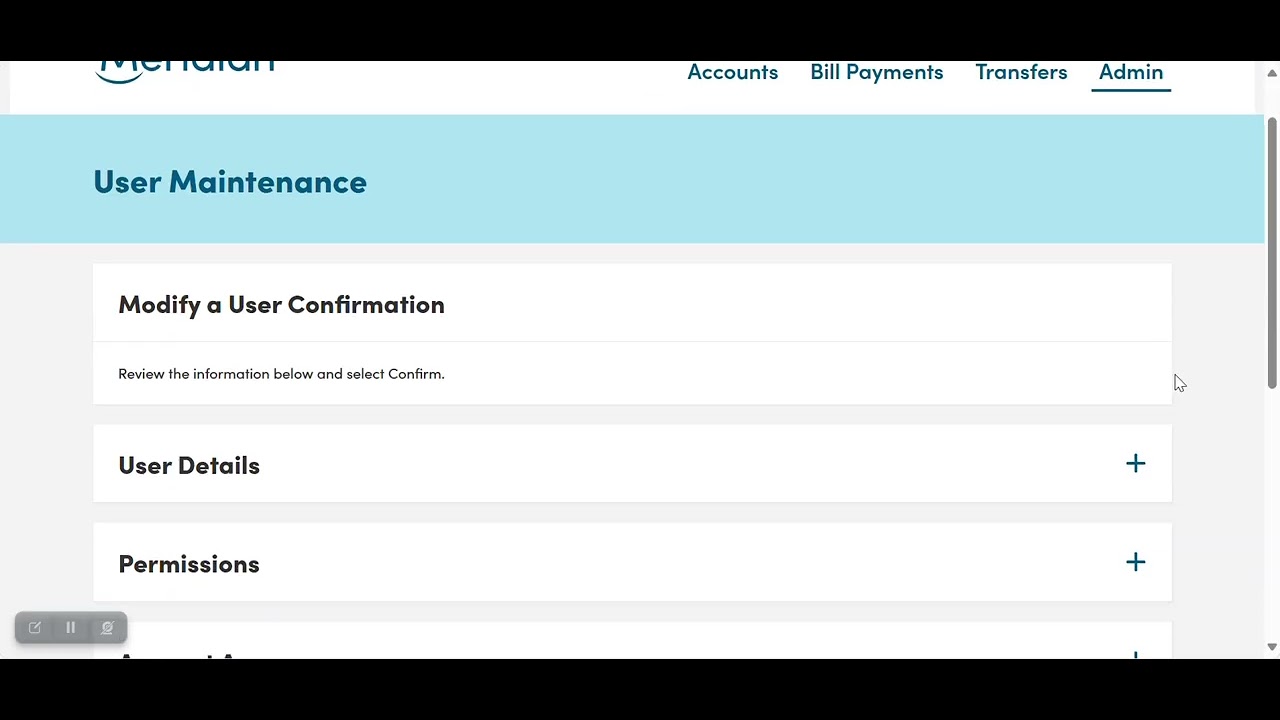
Narrator: This will bring you to a confirmation page.
[Confirmation page appears with a required comment field at the bottom.]
Narrator: Please scroll down to the bottom, where a comment is required. You can type in the action that you did. Here, I will put “Adding New Account.”
[Cursor types “Adding New Account.”]
Narrator: Then, please ensure you select the Confirmation button.
[Cursor clicks the “Confirmation” button.]
Narrator: If your business group requires one or more approvals for administrative tasks, then this request will put your profile in an Update in Progress. Another administrator will need to sign in and approve your task.
[Screen displays an “Update in Progress” message if approvals are needed.]
Narrator: If no approval is required, you will just need to sign out and sign back in to now view the new account added.
[Cursor demonstrates signing out, signing in, and returns to the dashboard—the new account is now visible.]
Narrator: For any additional support with your business online banking platform, please contact our support team at 1-866-592-2226 at option 3. We are open Monday to Friday, 8:30 am to 5:00 pm, or you can reach us at [email protected]. Thanks for watching!
Read the transcript for the video guide on how to view new accounts in Meridian Business Online Banking.