

How to add goals in the planning tool
This guide explains how to set up your goals in the financial planning tool, which will help you get personalized strategies for your plan and track your progress.
Welcome to Meridian's online financial planning tool. Your financial plan is designed to help you create a personalized roadmap for your financial goals. Whether you're saving for a home, planning for retirement, or managing debt, this tool is designed to help you get OnYourWay.
Step 1: Select goals
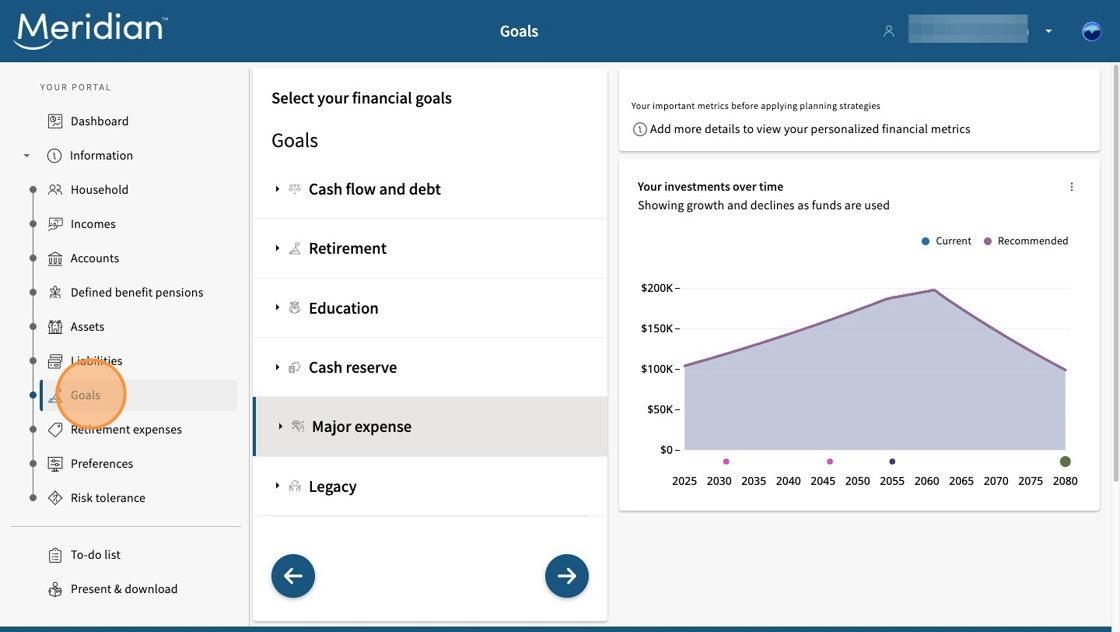
Select "Goals" to choose and add details about your financial goals.
There are six types of goals that can be added to your plan:
- Cash flow and debt: Focus on improving your cash flow and debt management score based on four progressive levels.
- Retirement: Plan for retirement savings and income so you can retire on your terms.
- Education: Save for education expenses, like a dependant’s future tuition.
- Cash reserve: Build an emergency fund for unexpected circumstances such as job loss or a medical emergency.
- Major expense: Plan for large purchases including property or other expenses – like a car, vacation, etc.
- Legacy: Prepare for inheritance or charitable giving.
Step 2: Add cash flow and debt goal
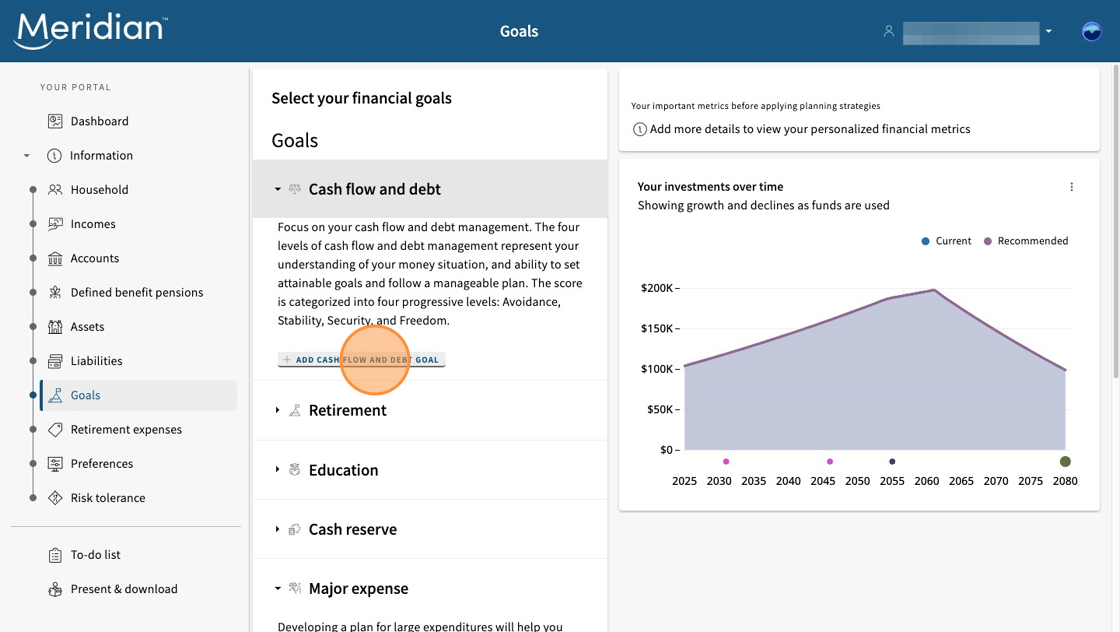
Focus on improving your cash flow and debt management. This part of your plan helps you understand your financial situation and build a path toward financial wellness.
Your score is based on four progressive levels that reflect your ability to set realistic goals and follow a manageable plan:
- Avoidance: You’re working to avoid new debt and manage basic expenses.
- Stability: You’re consistently meeting financial obligations and starting to build savings.
- Security: You’re reducing debt and growing your savings capacity.
- Freedom: You’ve achieved financial flexibility and are planning for long-term independence.
To add this goal, simply select "Add Cash Flow and Debt Goal."
Step 3: Add retirement goal
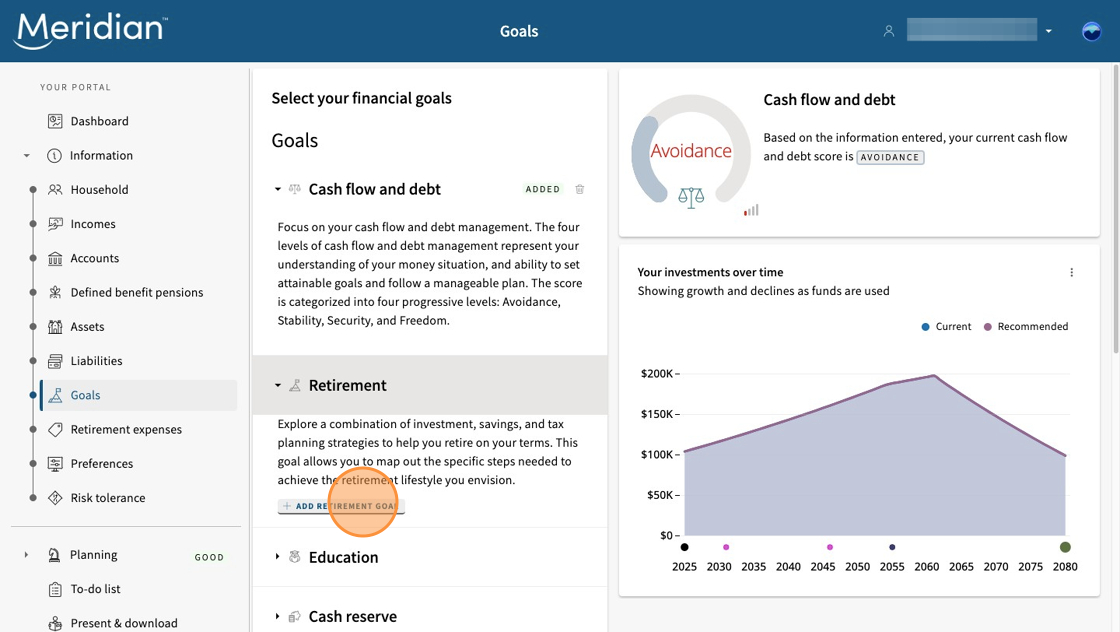
Plan for the retirement lifestyle you envision by exploring a combination of investment, savings, and tax planning strategies. This goal helps you map out the specific steps needed to retire on your terms — whether that means traveling, downsizing, or simply enjoying peace of mind.
To add this goal, simply select "Add Retirement Goal."
Step 4: Add education goal
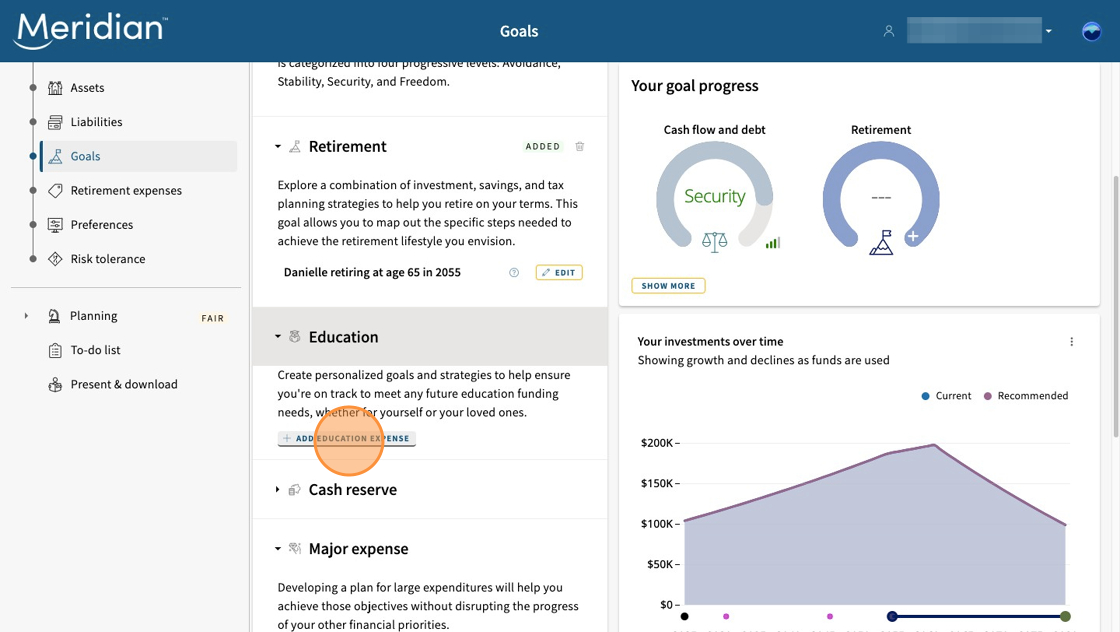
This goal helps you plan and save for future education expenses — whether for yourself or someone you care about. It guides you through estimating costs, setting timelines, and exploring savings strategies that fit your financial situation, so you're ready when the time comes.
To add this goal, select "Add Education Expense."
Step 5: Enter education goal details
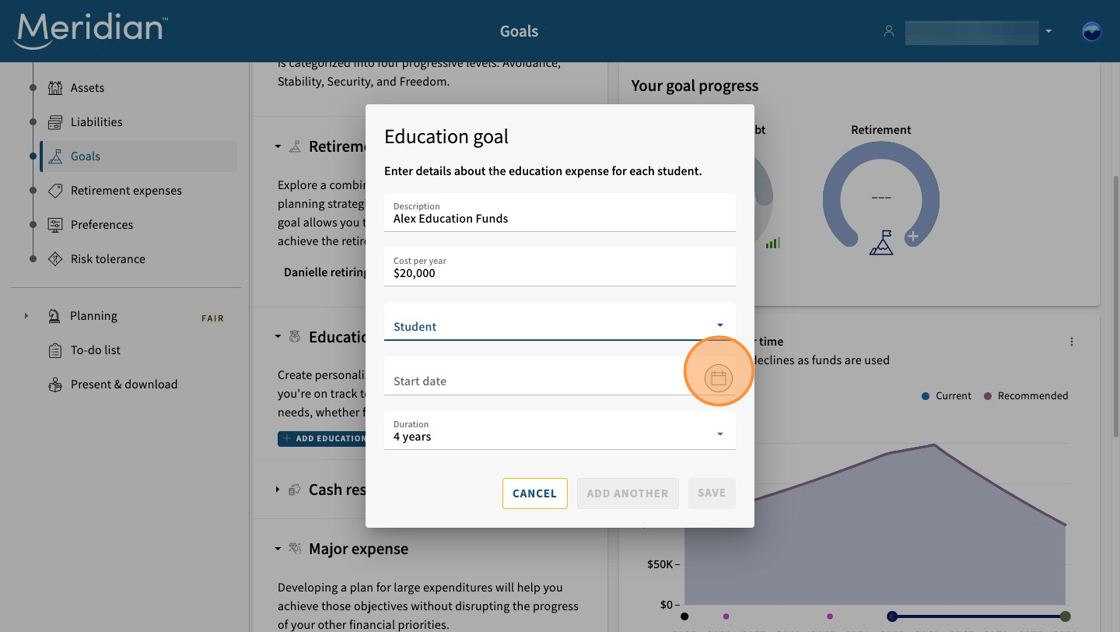
Next you'll be prompted to enter details about the education expense such as a description, cost per year, start date, and duration.
Tip: If the education expense is for one of your dependants or your spouse, make sure you have added them to your plan in the "Household" tab so they appear in the drop down menu in the "Student" field.
Step 6: Add cash reserve goal
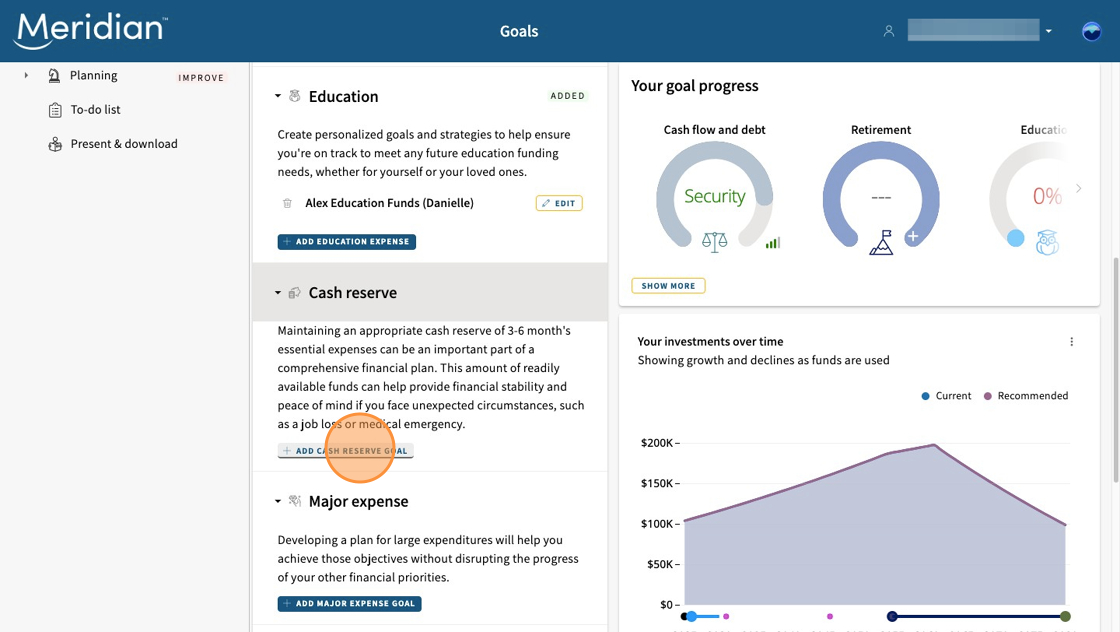
This goal is about maintaining a cash reserve to be used in case of unexpected events such as a job loss or medical emergency. A cash reserve equal to three to six months' of essential expenses is a key part of a comprehensive financial plan that can offer financial stability and peace of mind.
To add this goal, select "Add Cash Reserve Goal."
Step 7: Enter cash reserve details
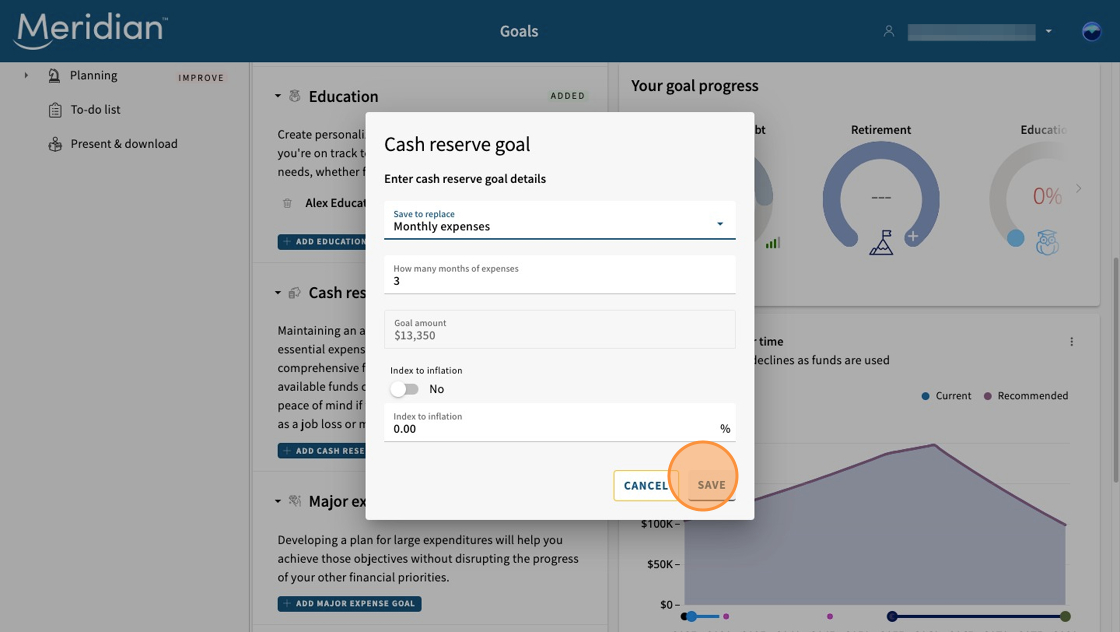
Next you will specify how many months of essential expenses you’d like to save for. The tool will automatically calculate your goal amount using the income information you entered earlier, making it easy to stay aligned with your financial reality.
Step 8: Add major expense goal
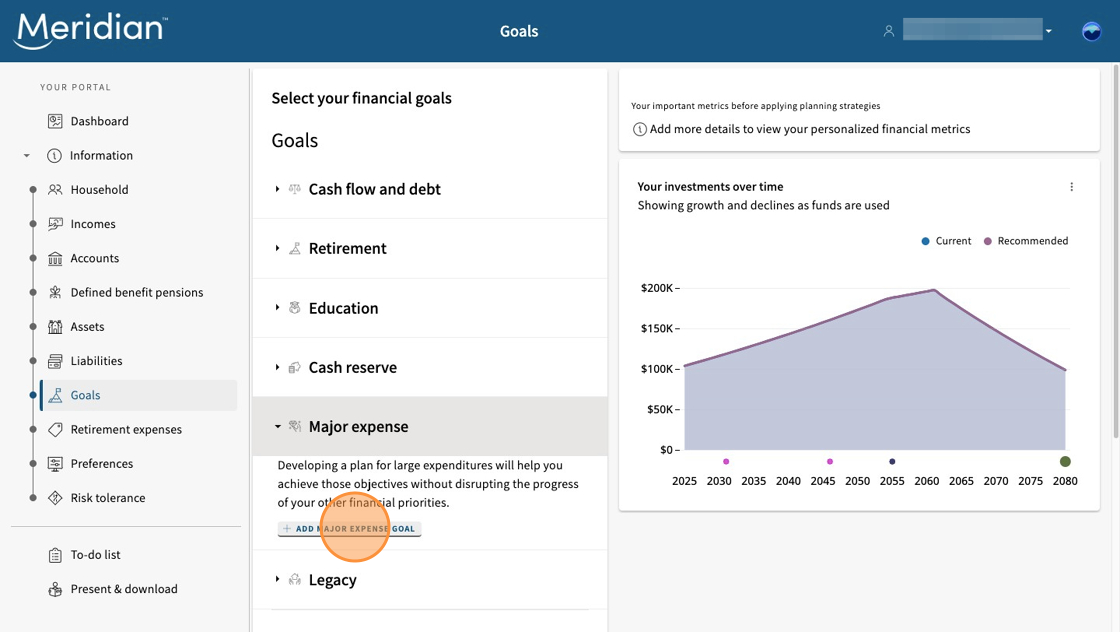
This goal helps you plan ahead for large expenses, such as a down payment, home renovation, vehicle purchase, or wedding. By developing a strategy for this goal, you’ll be better prepared to manage costs and stay on track with your overall financial plan.
To add this goal, select "Add Major Expense Goal."
Step 9: Enter major expense goal details
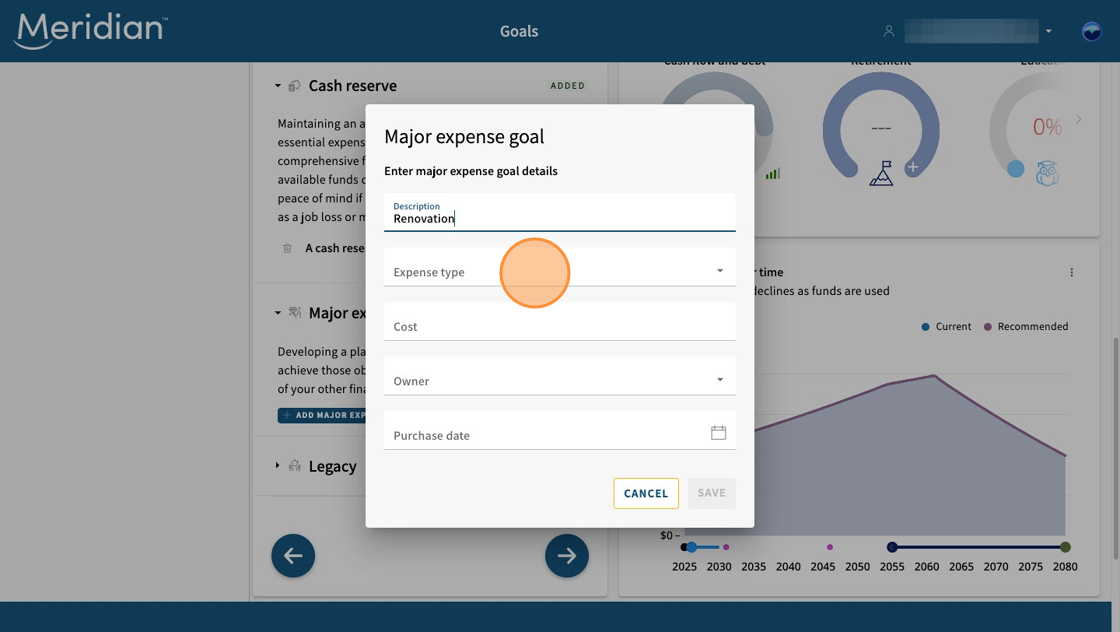
Now it’s time to enter the specifics of your goal. You’ll be asked to provide:
- A description, or name, of the expense
- The type of expense such as "Residence" or "Recurring expense"
- The estimated cost
- The owner of the expense: yourself, your spouse, or a joint expense
- The date by which you’d like the funds to be available
Tip: If it's a joint expense or one owned by your spouse/partner, make sure you have added them to your plan in the "Household" tab so they appear in the drop down menu in the "Owner" field.
Step 10: Add legacy goal
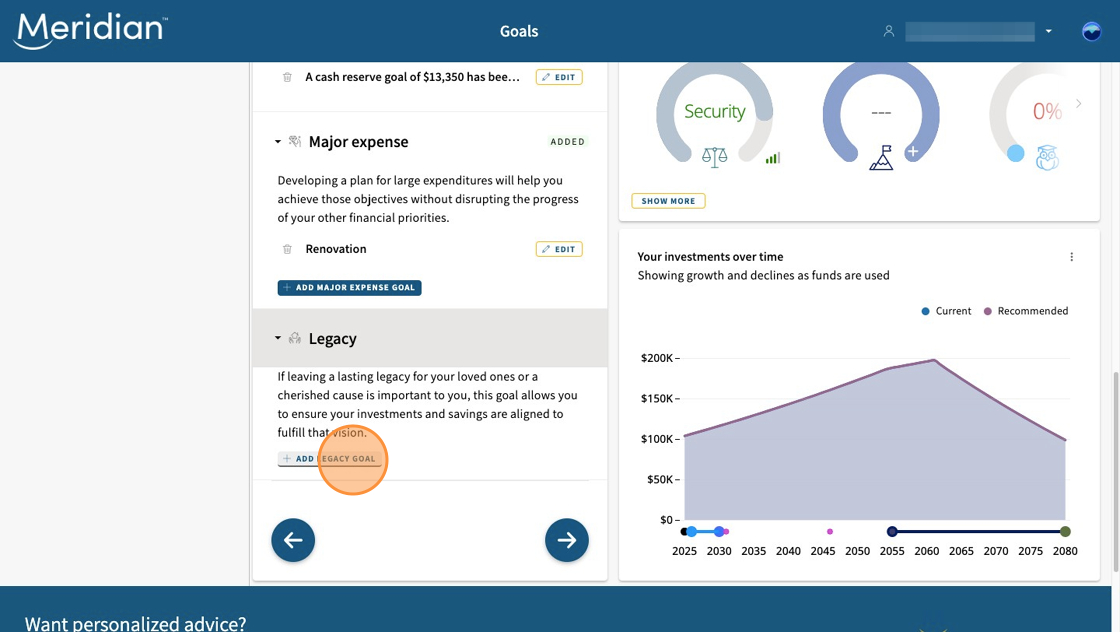
Whether you're planning to support family, contribute to a charity, or create a meaningful impact, this goal is about ensuring your investments and savings are aligned to fulfill that vision.
To add this goal, select "Add Legacy Goal."
Step 11: Enter legacy goal details
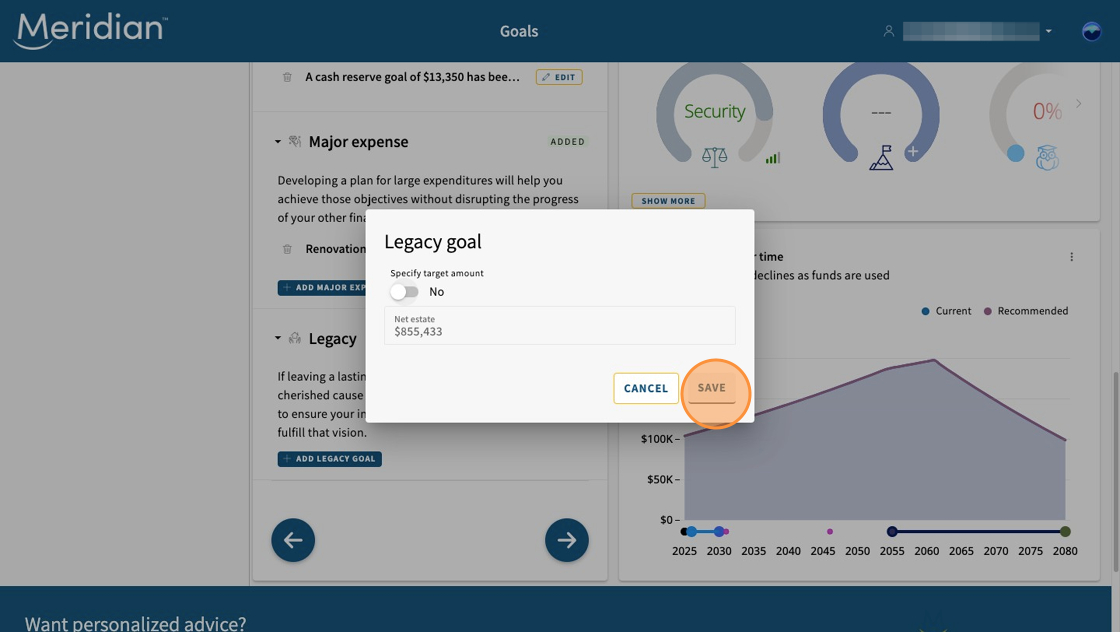
Next, you’ll have the option to specify your target goal amount manually if you choose. Otherwise, the tool will automatically calculate your net estate amount using the assets and liabilities information you entered earlier.
Move on to the next step: Set your retirement expenses and preferences
Learn more about using the planning tool
Get the most out of our planning tool by exploring more user guides and answers to frequently asked questions.
All planning tool user guides Frequently asked questions About the planning tool