

How to enter your info in the planning tool
This guide explains how to enter all your information in the financial planning tool so you set yourself up for success.
Welcome to Meridian's online financial planning tool. Your financial plan is designed to help you create a personalized roadmap for your financial goals. Whether you're saving for a home, planning for retirement, or managing debt, this tool is designed to help you get OnYourWay.
Skip ahead to:
Household | Incomes | Accounts | Defined benefit pension | Assets | Liabilities
Step 1: Select the menu
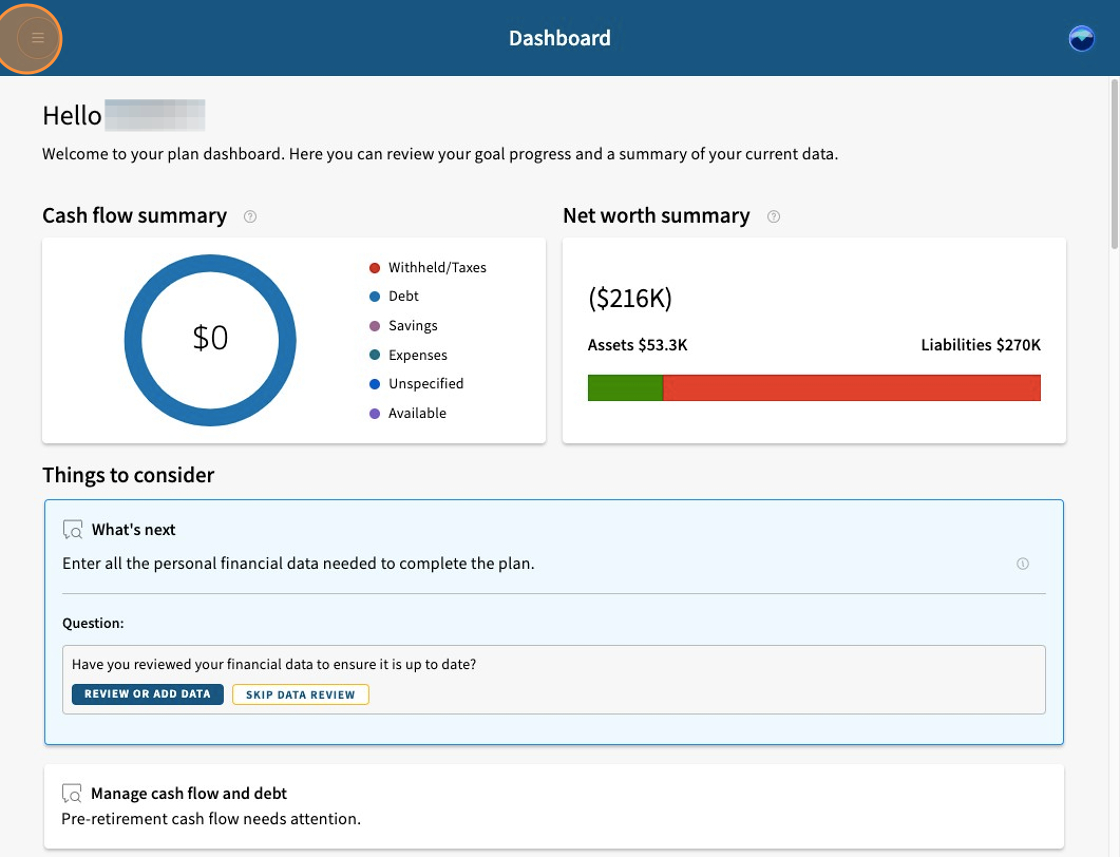
In the Financial planning tool, get started by selecting the menu icon to begin entering your information.
Step 2: Go to the Information tab
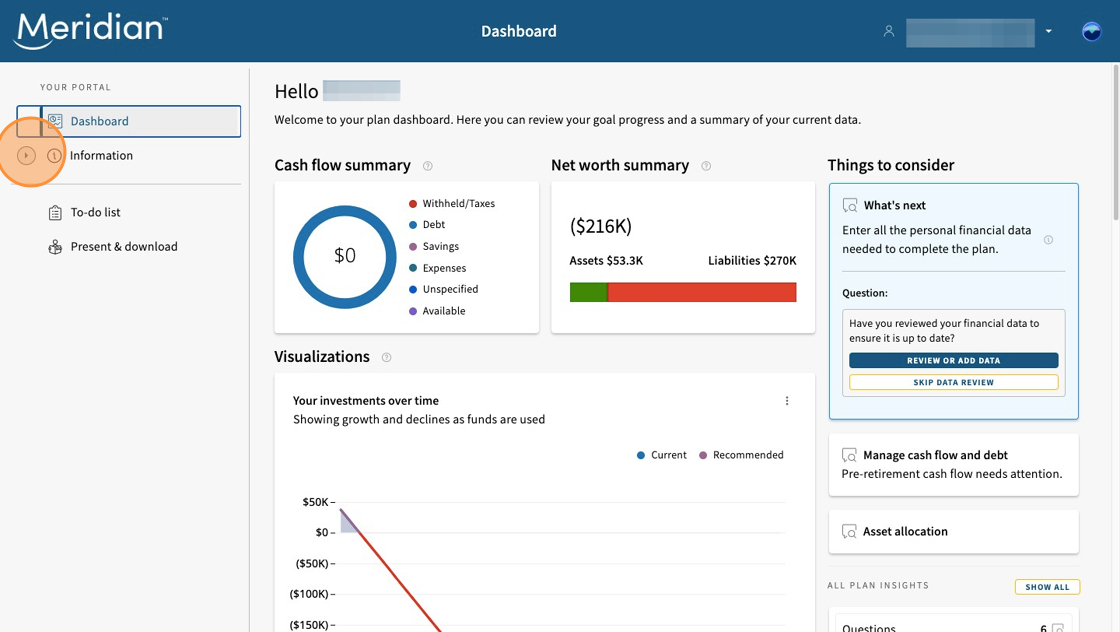
Click the "Information" tab to see the full drop-down list of the particulars to be entered.
Note: Meridian information, like balances from the Meridian accounts you selected to include in your plan, will already be populated and will update in real time every time you log in.
Step 3: Start with your household
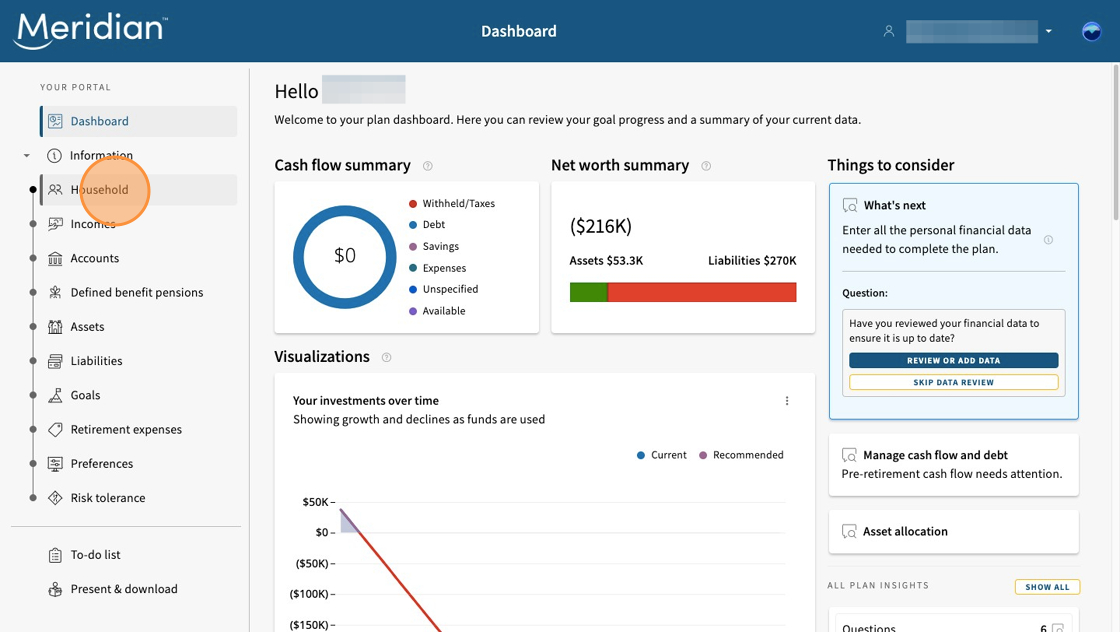
Select "Household" to enter details about yourself, your spouse or partner, and your dependants.
Step 4: Enter household details
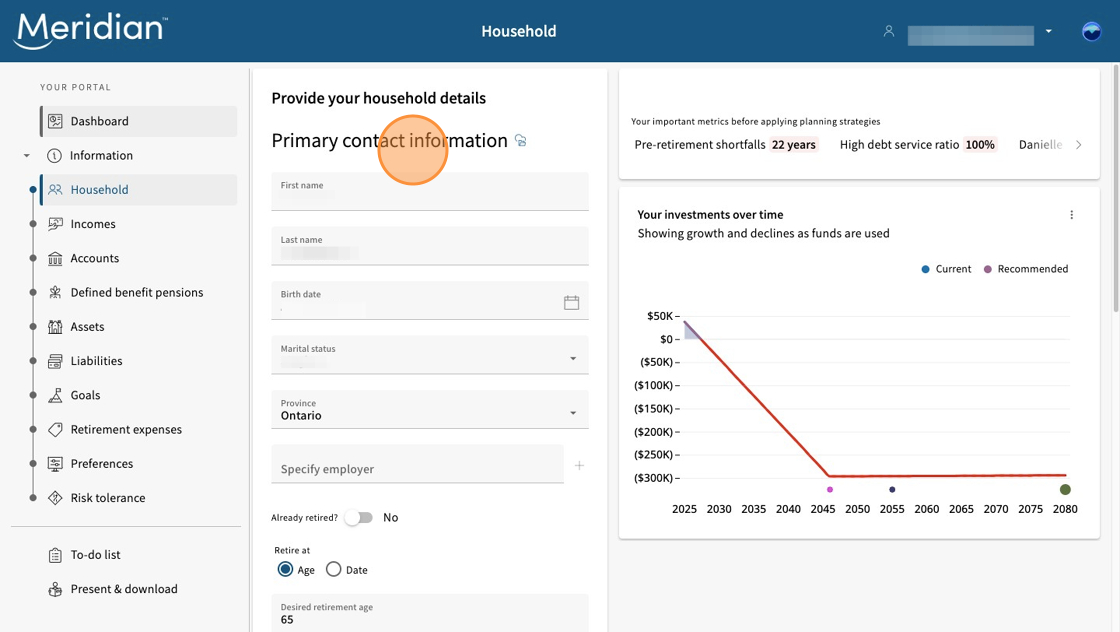
This is where you’ll enter all your household details, including names, dates of birth, marital status, as well as your desired retirement age.
Step 5: Enter dependants
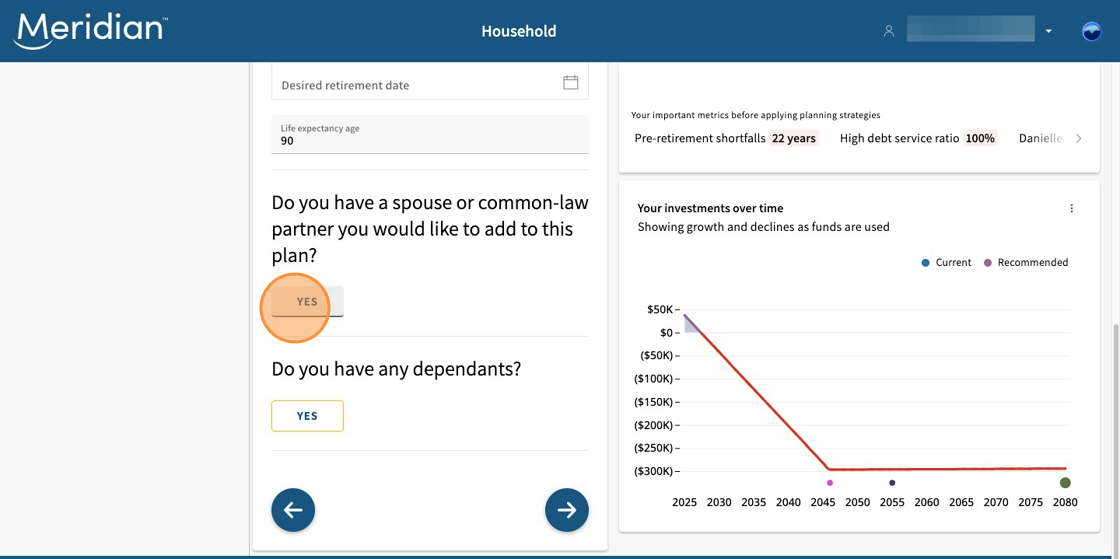
After entering your own information, you can also add details for your spouse and any dependants, if applicable.
Step 6: Add income details
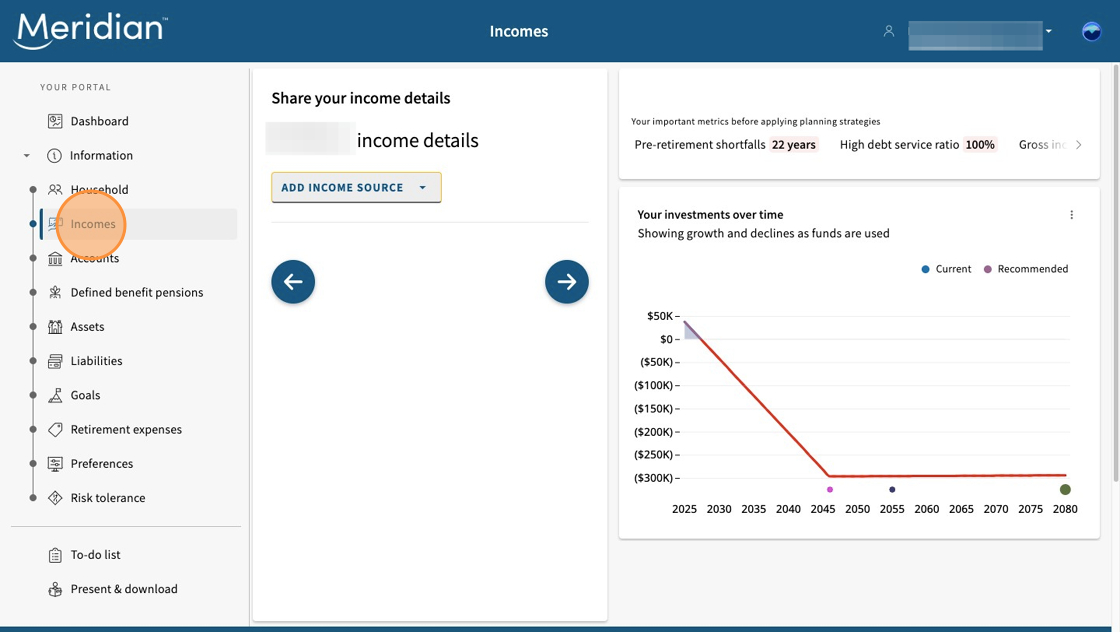
Next, navigate to "Incomes" to add all your sources of income, such as salary, bonuses, self-employment, and more.
Step 7: Add income sources
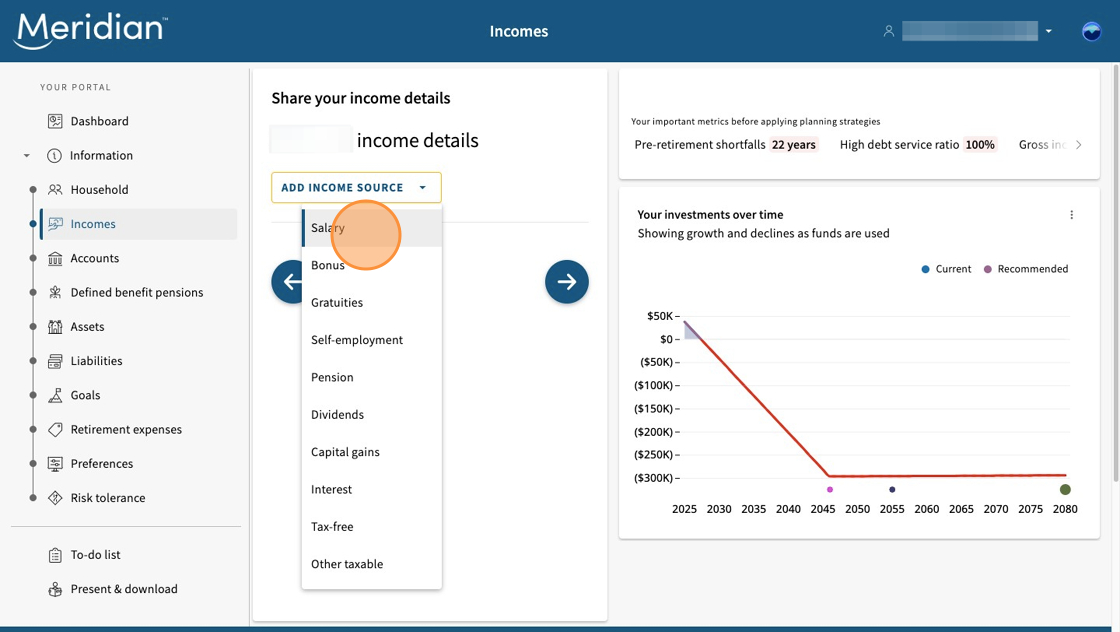
Click the "Add income source" button and select the appropriate income source from the drop-down menu.
Step 8: Review tips
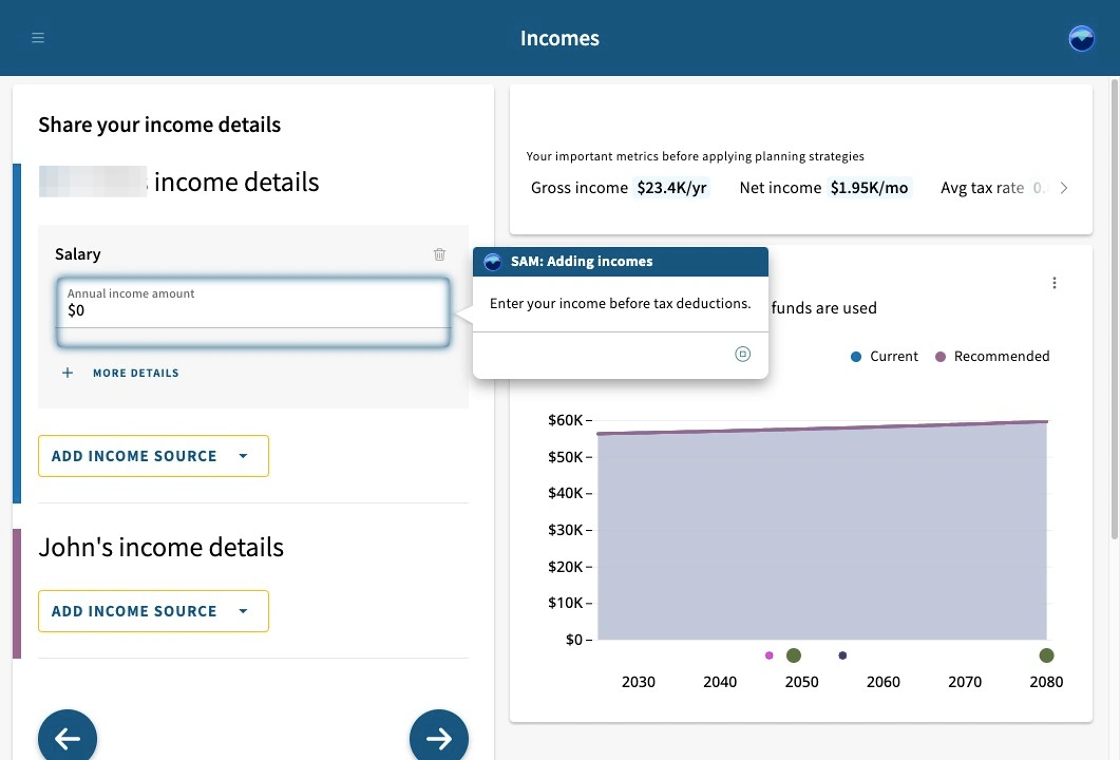
Here, you might see SAM (Strategic Advice Manager) in action, prompting you with tips along the way.
If you've added your spouse or partner to the plan, you can enter their income details too.
Step 9: Add accounts
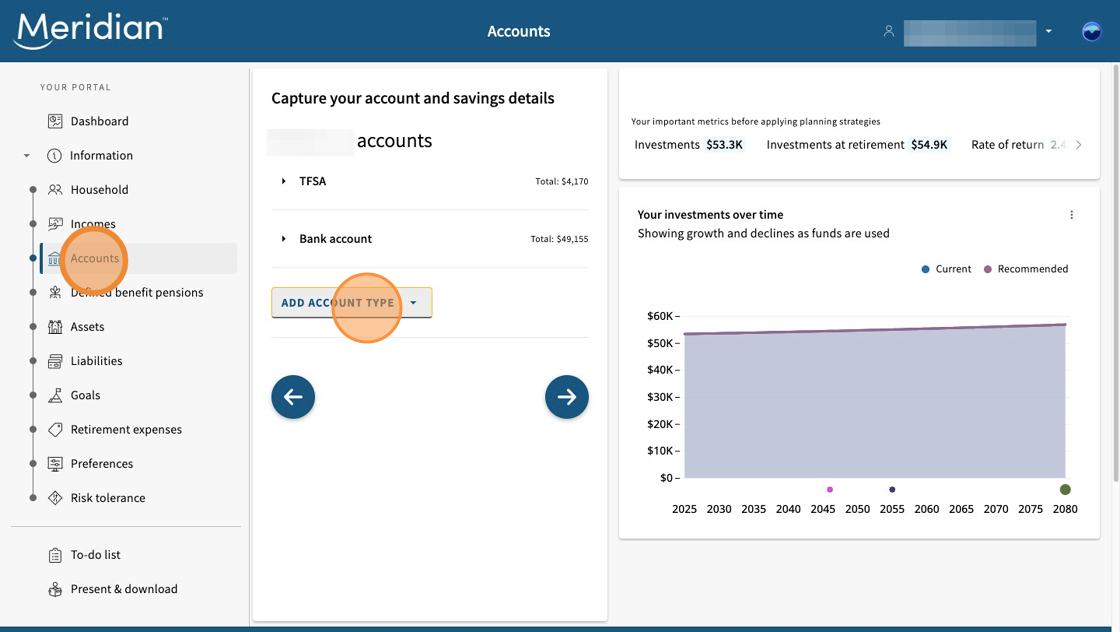
Click "Accounts" to add any registered or non-registered accounts you have at other financial institutions outside of Meridian. Remember, your Meridian accounts will automatically populate.
To add additional accounts, click "Add account type."
Step 10: Choose account types
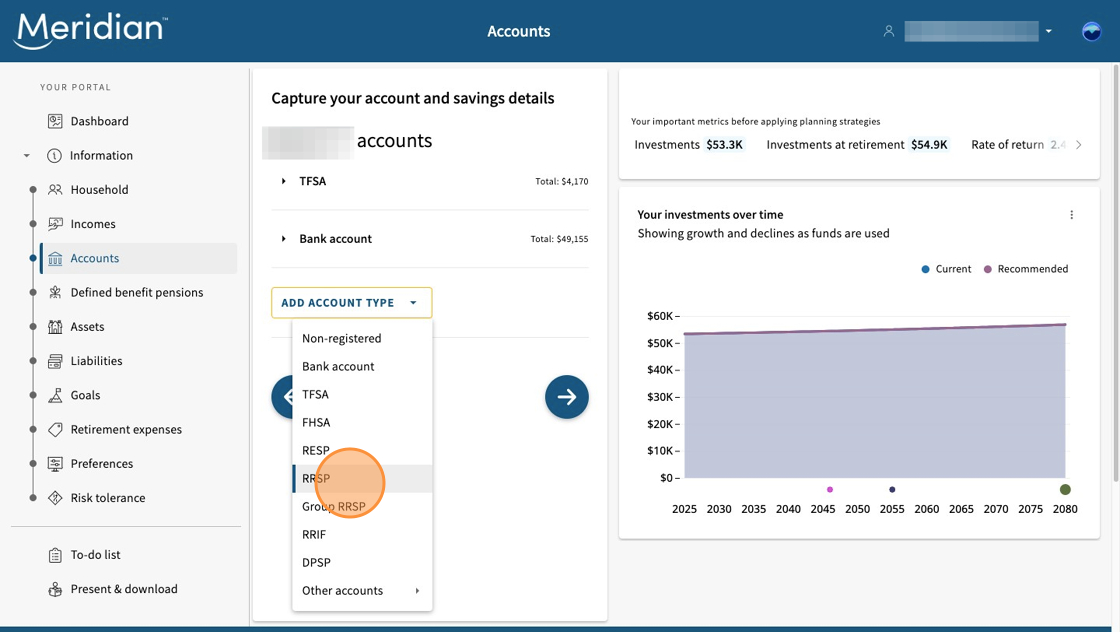
Choose the account type from the drop-down menu. In this example, we will add an RRSP account by selecting "RRSP."
Step 11: Add account balance
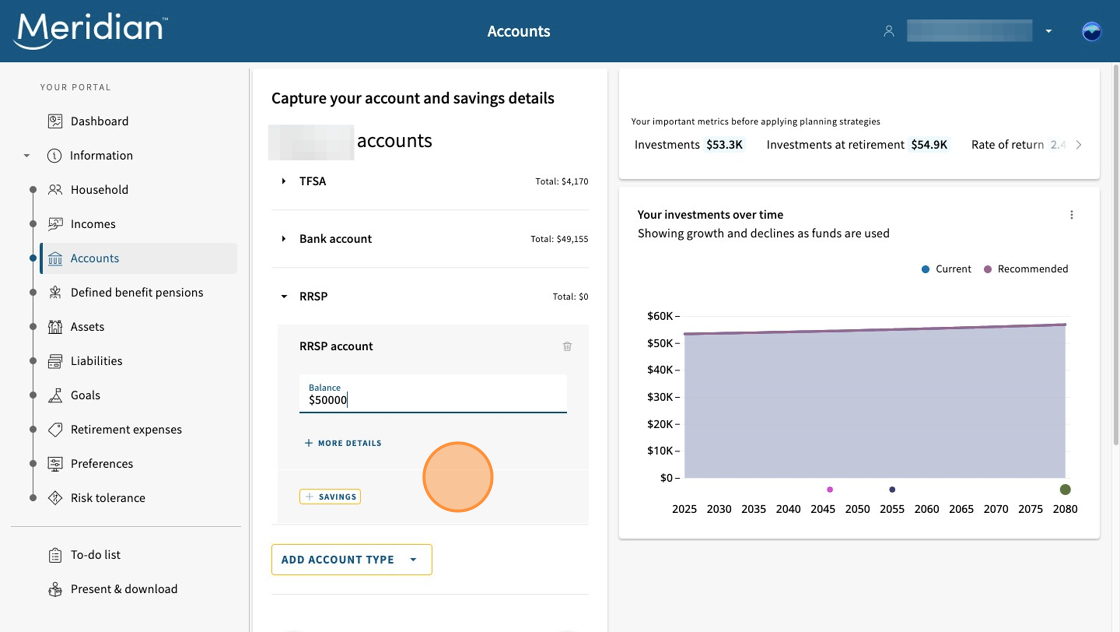
Input the account balance. Remember, accounts held outside of Meridian are not synced in real time and you will need to manually update these balances each time you are updating your plan.
Tips: Click the "More Details" button to add other details about this account, such as the account description. We recommend adding the name of the banking institution (e.g., Green Bank — RRSP) in the description.
Click the "Savings" button to add recurring or one-time savings to the account.
Step 12: Add defined benefit pension
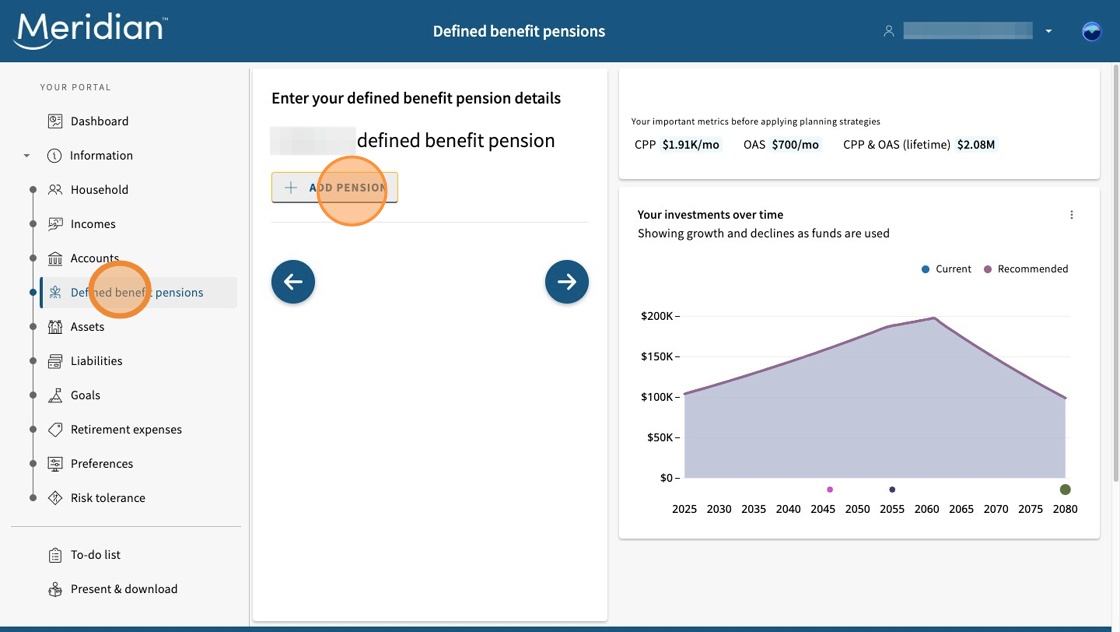
Select the "Defined benefit pensions" tab and then click the "Add Pension" button to add pension details if applicable.
Step 13: Add pension details
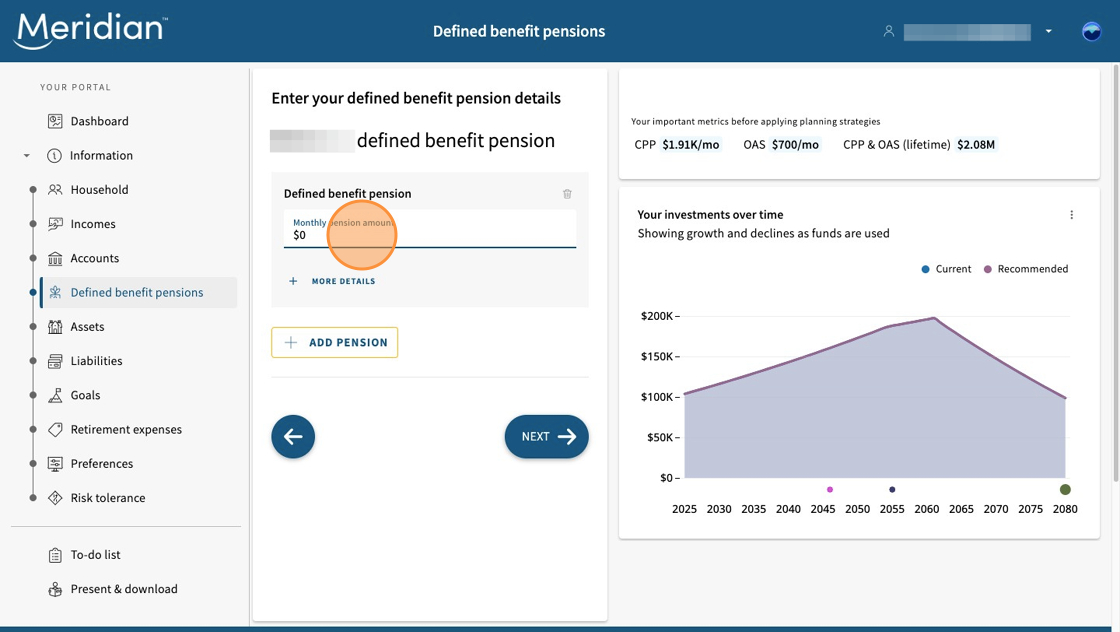
Specify your monthly pension amount. You can also click the "More Details" button to update the description/name of the pension and specify the pension start date.
Step 14: Add assets
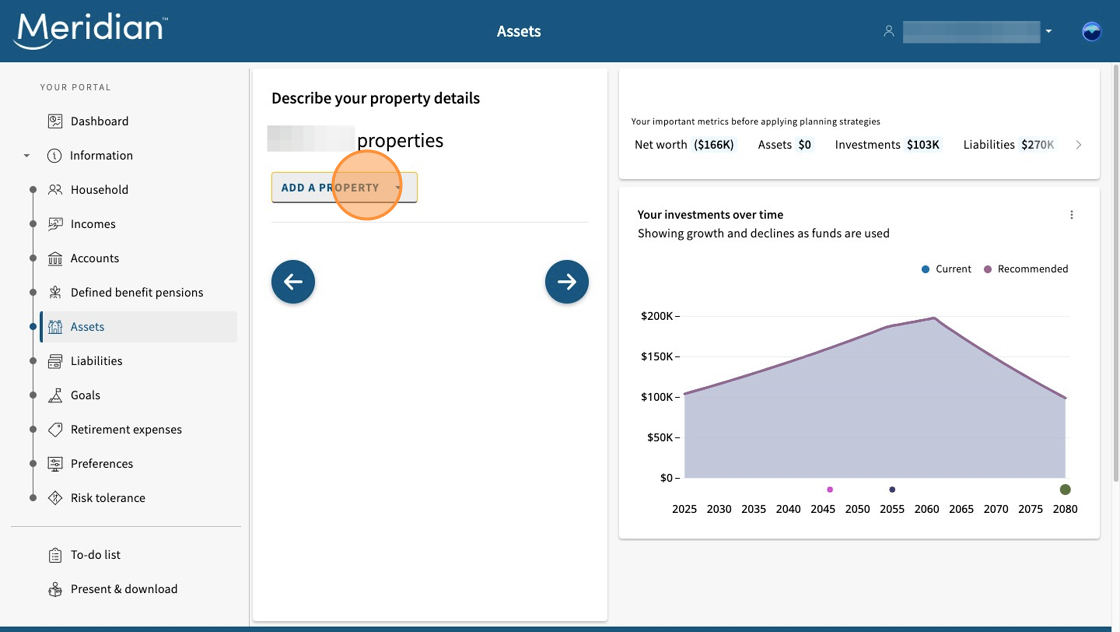
Select the "Assets" tab and then click the "Add a Property" button to enter details of any properties you own.
Step 15: Choose the property type
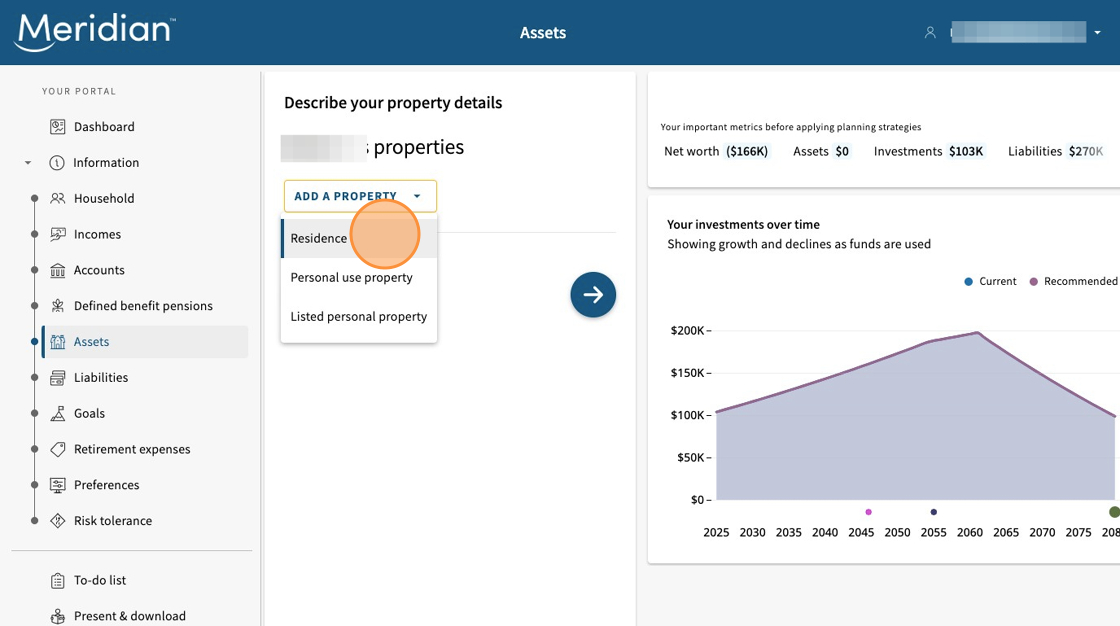
Select the property type from the drop-down menu.
Step 16: Add property details
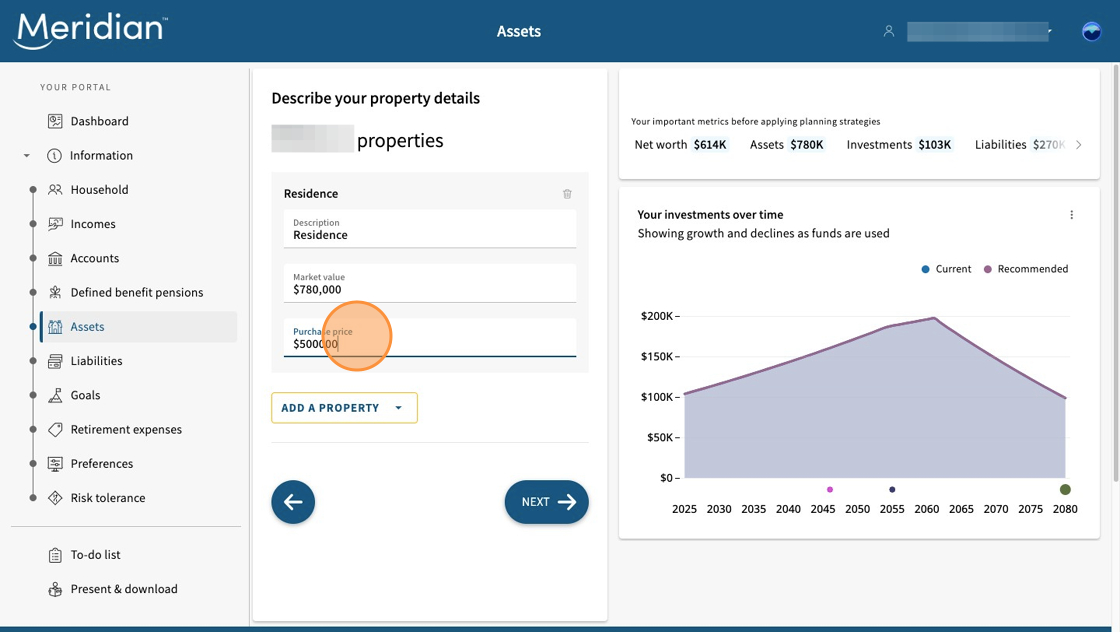
Input property details, including the description of the property, its market value, and purchase price.
Tip: To add a jointly owned property, or one owned by your spouse/partner, make sure they have been added to your plan under the "Household" section.
Step 17: Add liabilities
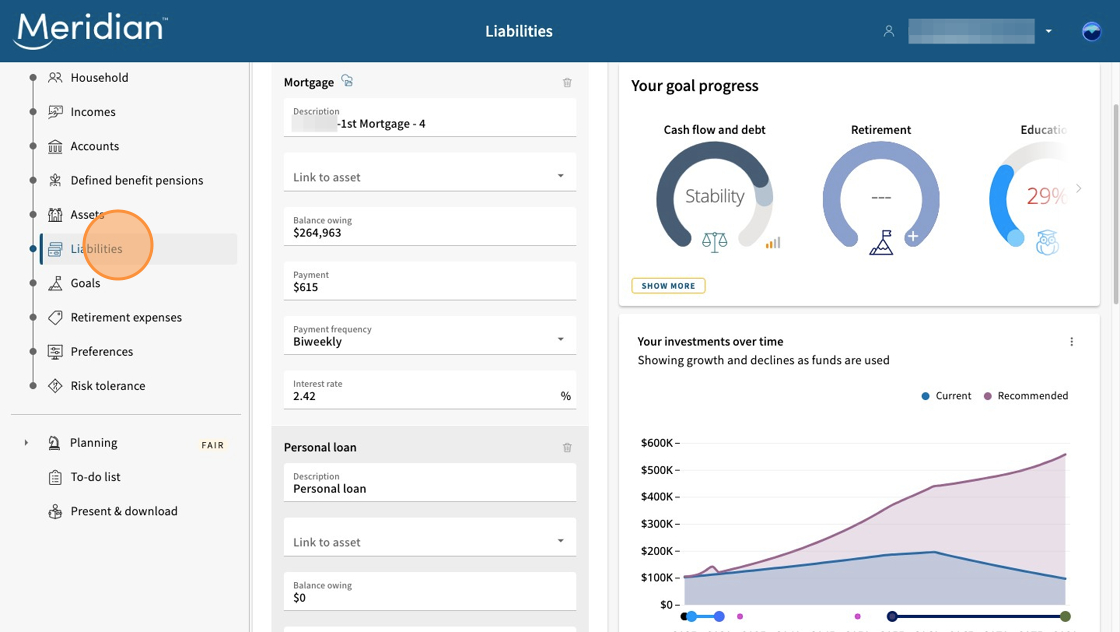
Click "Liabilities" to enter details about your debts, loans, and other liabilities that you have at financial institutions outside of Meridian.
Meridian liabilities such as your Meridian Visa card will automatically populate.
Step 18: Select liability types
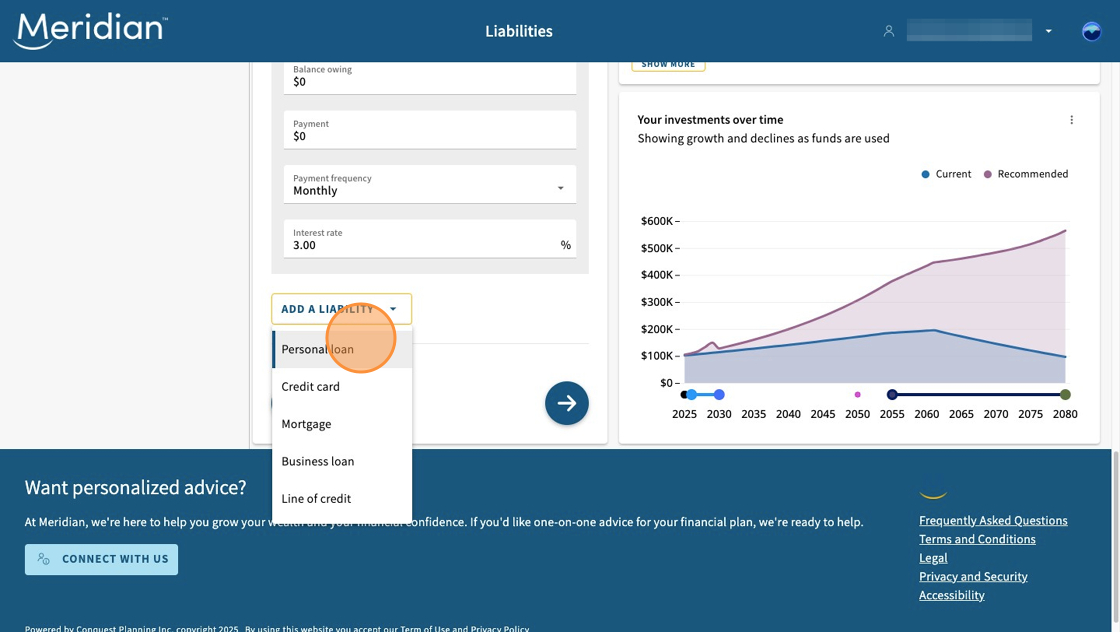
Click "Add a Liability" and select an option from the drop-down menu. Here you can add items such as personal loans, credit cards, mortgages, and lines of credit.
Step 19: Fill in liability details
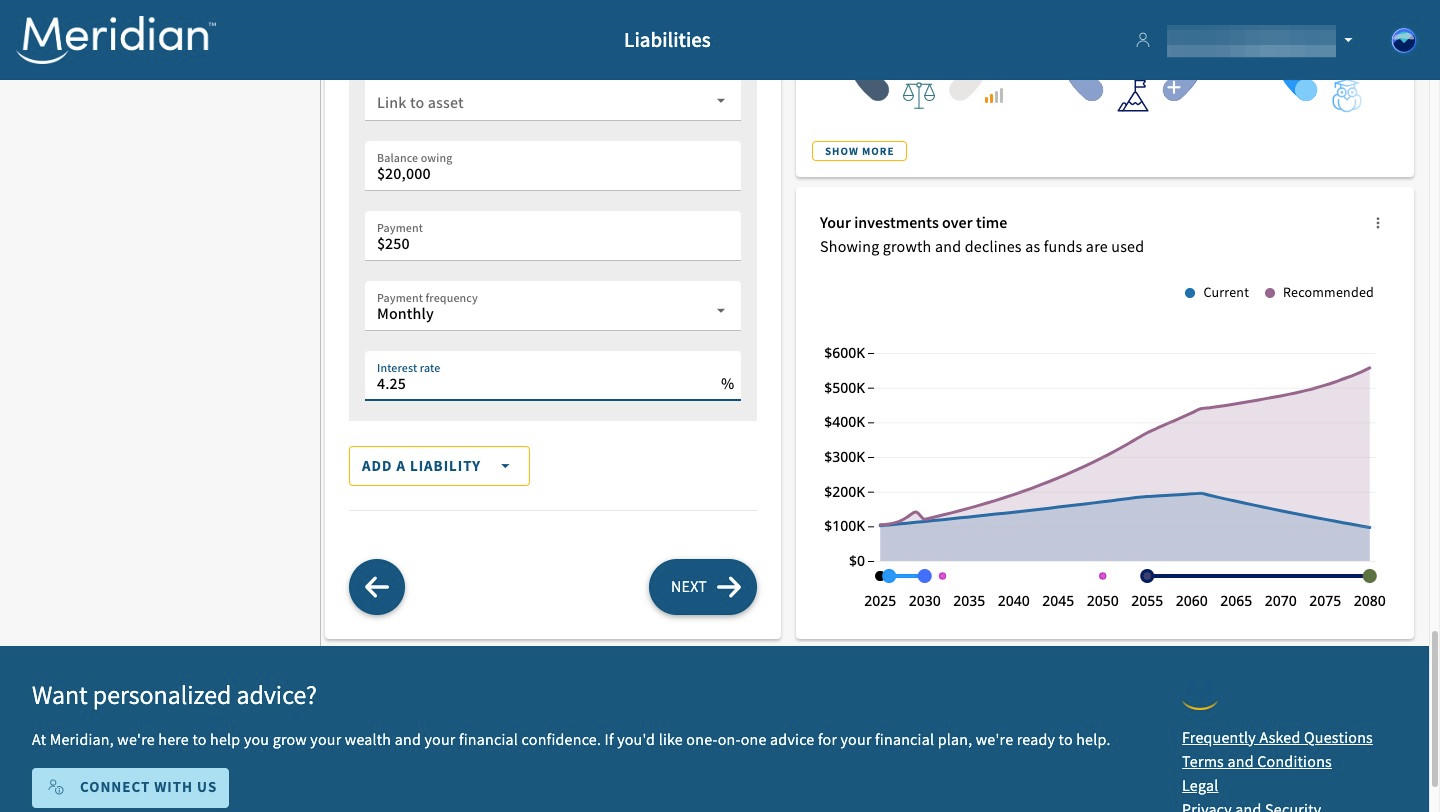
Fill in the details of each liability you are adding, such as the description (we recommend including the name of the financial institution in the description), the balance owing, payment frequency, and interest rate.
Remember, liabilities held outside of Meridian are not synced in real time and you will need to manually update these details each time you update your plan.
Move on to the next step: Adding goals
Learn more about using the planning tool
Get the most out of our planning tool by exploring more user guides and answers to frequently asked questions.
All planning tool user guides Frequently asked questions About the planning tool