

How to launch the planning tool
This guide explains how to launch the financial planning tool for the first time.
Welcome to Meridian's online financial planning tool. Your financial plan is designed to help you create a personalized roadmap for your financial goals. Whether you're saving for a home, planning for retirement, or managing debt, this tool is designed to help you get OnYourWay.
Step 1: Sign in
.png?language=en-US)
Start by navigating to www.MeridianCU.ca or the Meridian mobile app. Select "Sign in."
Step 2: Enter your sign in information
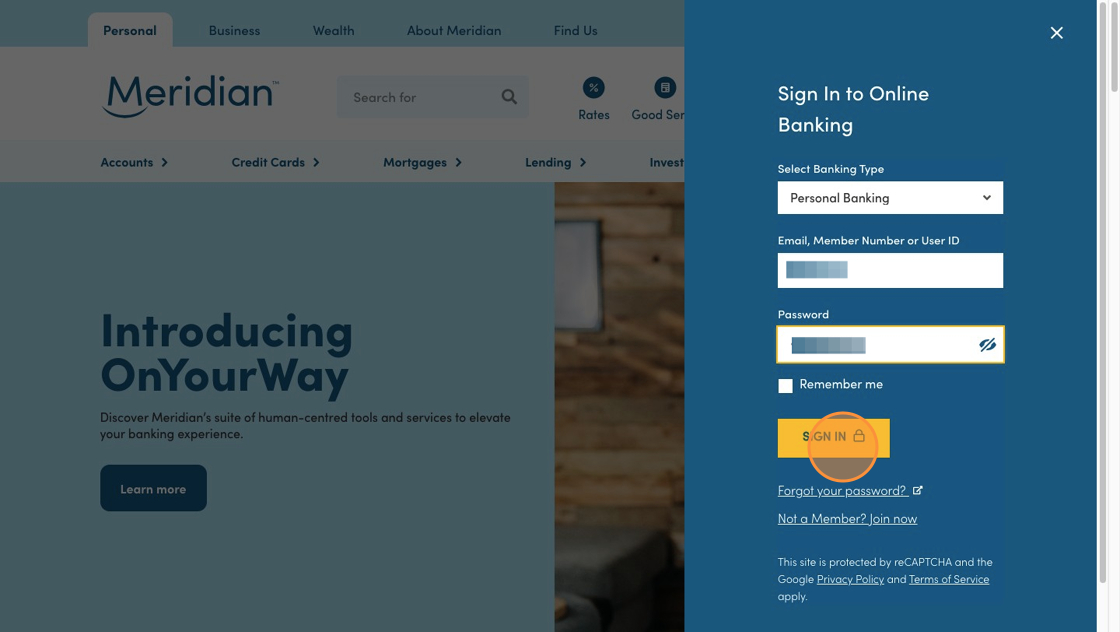
Enter your Meridian online banking login information and password. Select "Sign in."
Step 3: Go to the account summary page
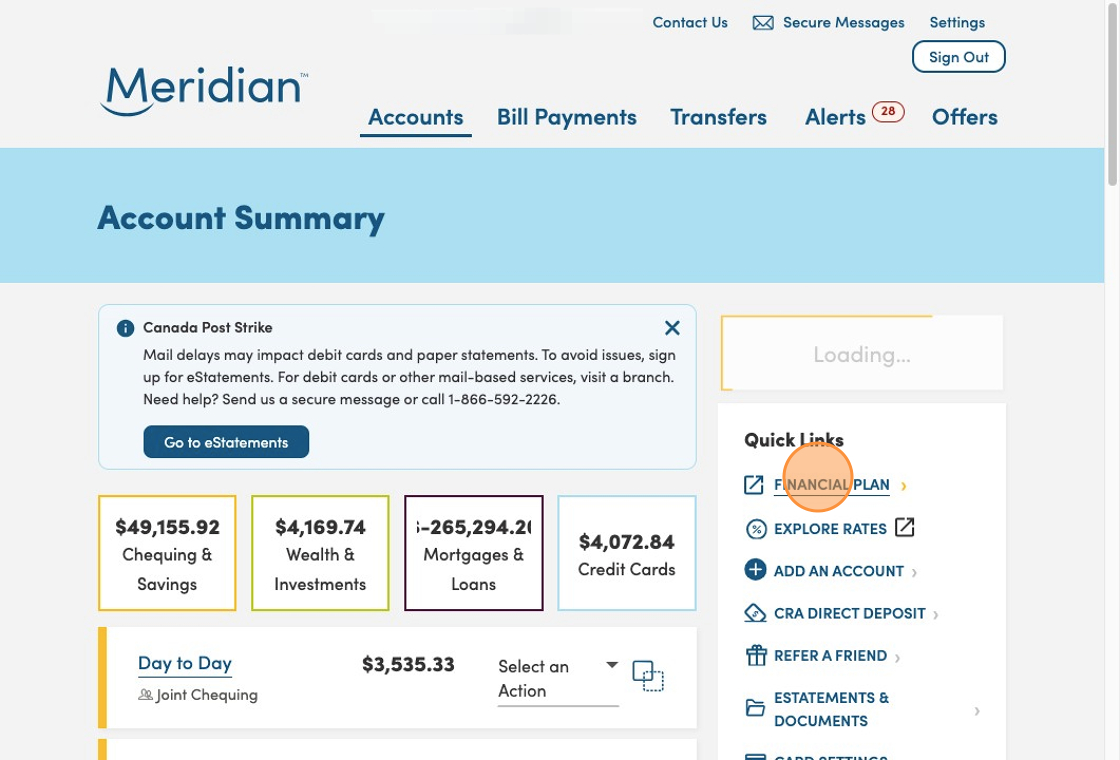
On the account summary page, select the "Financial Plan" link to begin your journey.
Or, if you are using the Meridian mobile app, select the Settings icon in the top left corner and then click "Financial plan."
Step 4: Create your plan
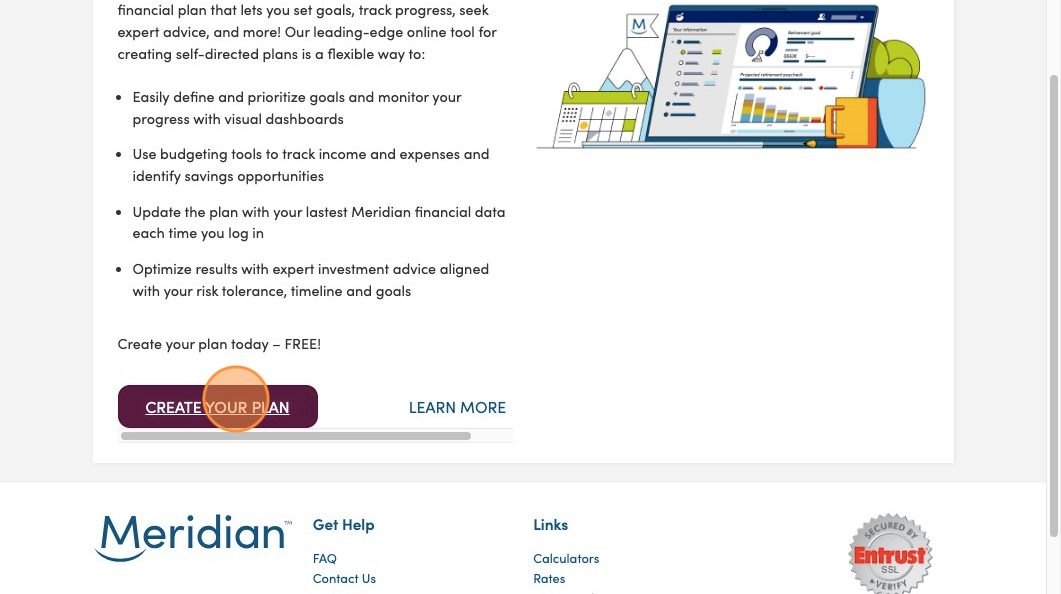
On the introduction screen, select the "Create your plan" button to get started.
Step 5: Read the consent form
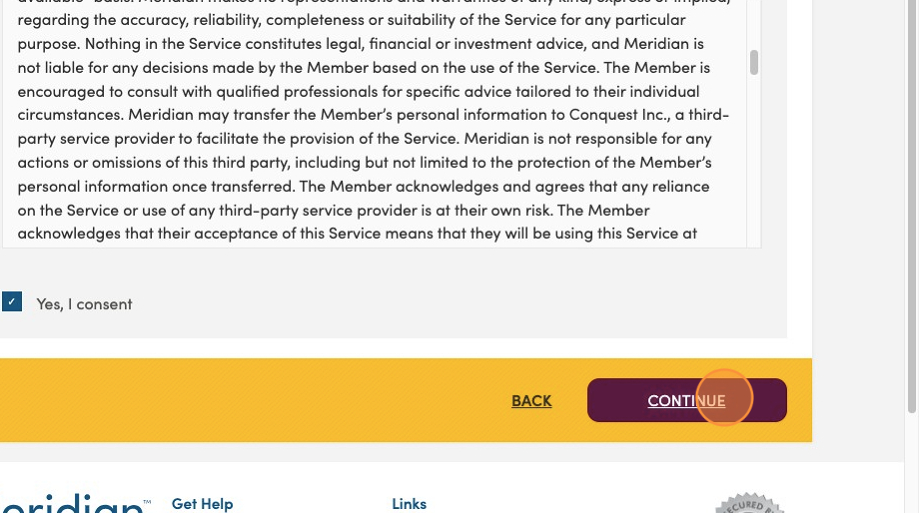
Review and agree to the consent form by checking the box. Then select "Continue" to launch the tool.
Step 6: Add accounts
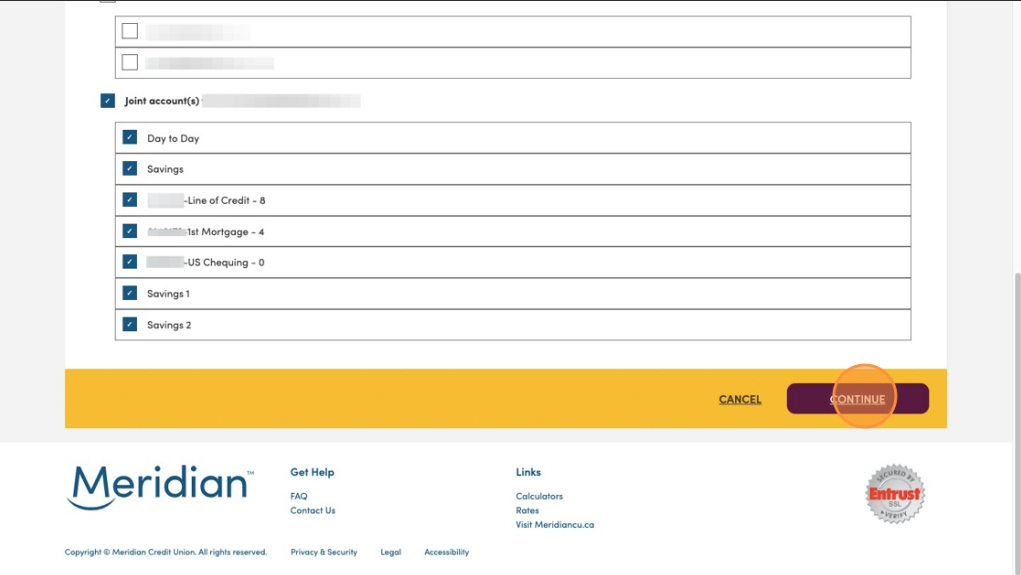
You can choose to include all of your Meridian accounts or select specific ones to exclude from your plan. Select the ones you want and then click ‘Continue’.
Step 7: Welcome to your dashboard
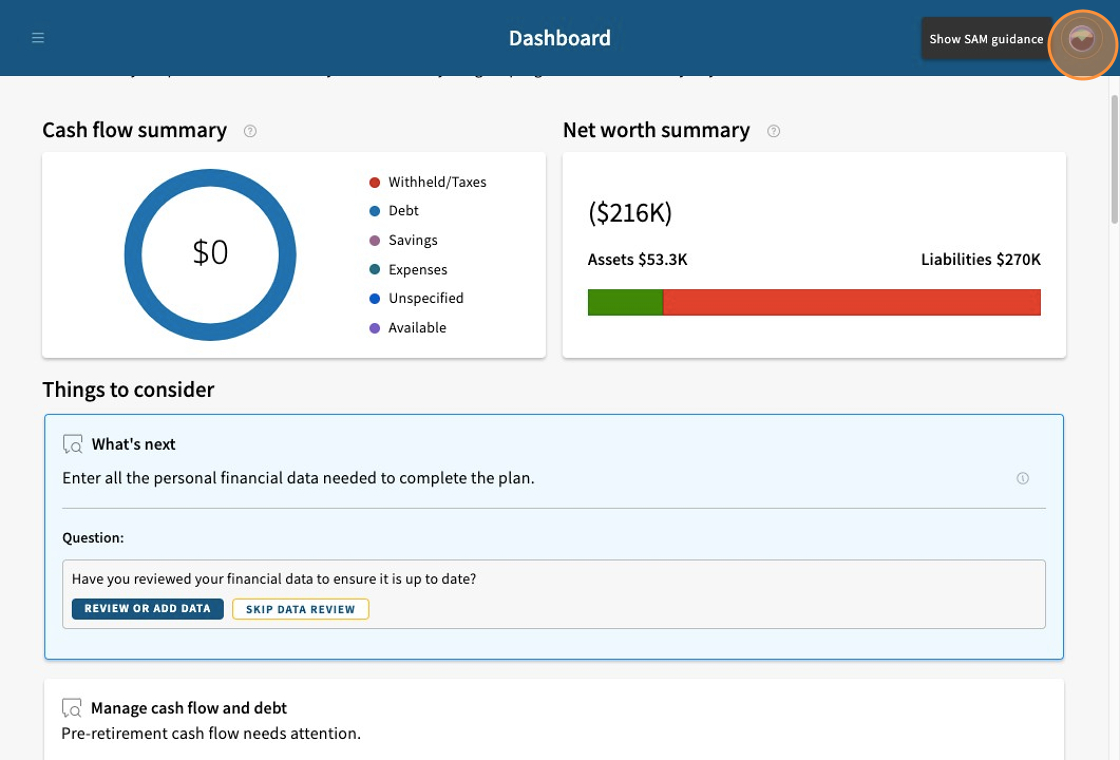
Now you'll be able to create your financial plan for the first time. Your plan saves as you go, so you can come back at any time and pick up where you left off.
In the top right corner, you'll notice the tool's helpful feature, SAM, or, Strategic Advice Manager. It's the intelligent engine behind the financial planning tool that generates personalized strategies based on your goals, preferences, and financial information. SAM continuously analyzes your inputs to suggest actions — like saving more, adjusting investments, or managing debt — that can help you stay on track and make progress toward your financial goals.
You don’t need to be an expert — SAM guides you through the planning process and adapts as your life changes and you update your plan.
Step 8: Explore SAM guidance
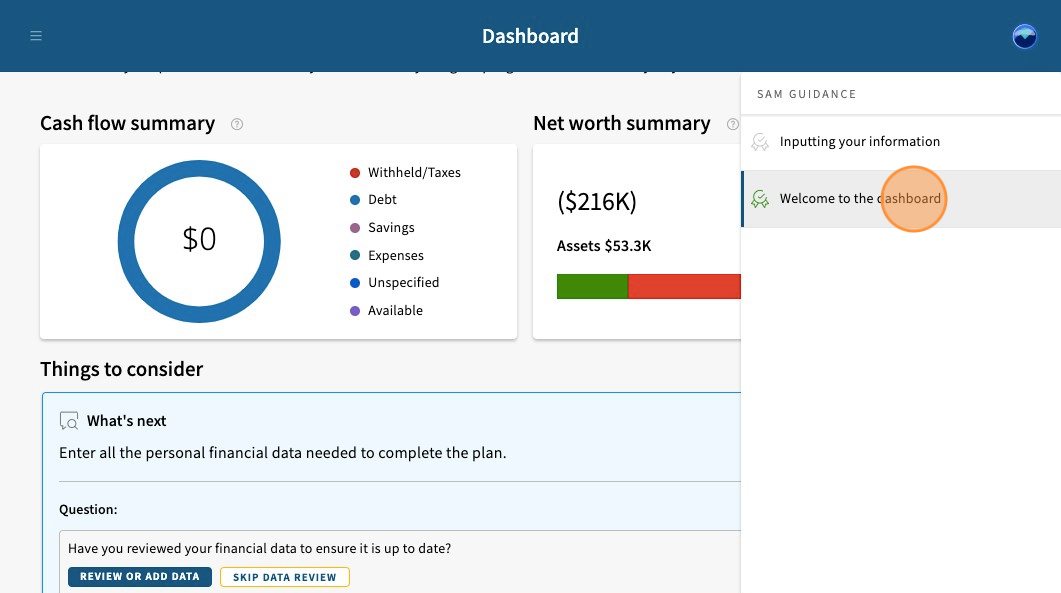
Select the SAM Guidance icon to bring up a list of topics SAM can help you with. Click on "Welcome to the dashboard" for more information about this feature.
Step 9: Starting to build your plan
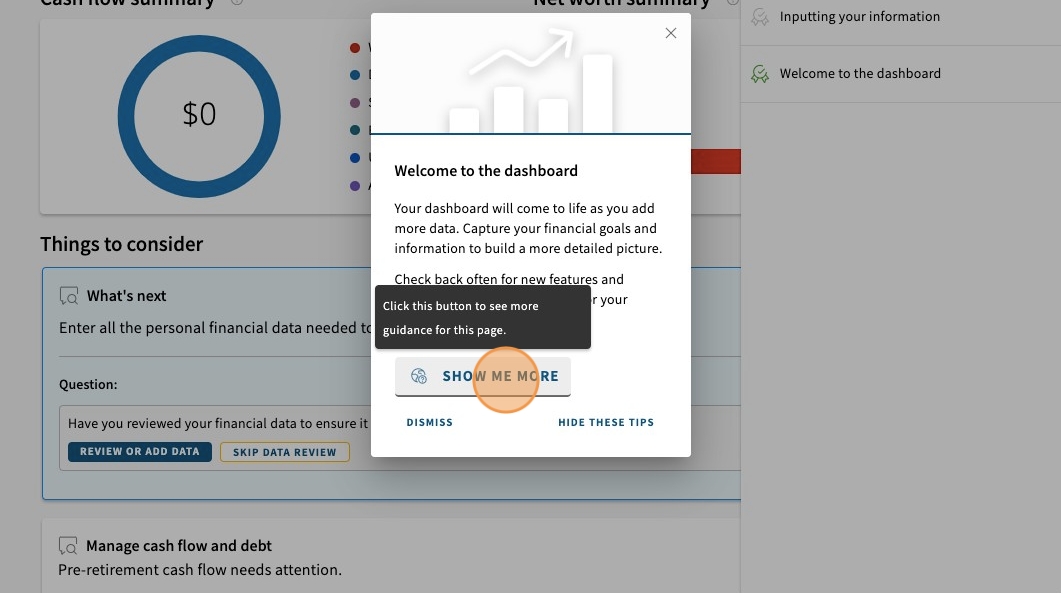
Once you've read the tip about the dashboard, select "Show me more" to be directed to start your plan.
Move on to the next step: Entering your information
Learn more about using the planning tool
Get the most out of our planning tool by exploring more user guides and answers to frequently asked questions.
All planning tool user guides Frequently asked questions About the planning tool