

How to review strategies in the planning tool
This guide explains how to review and select suggested strategies and generate a to-do list based on the strategies you’ve applied.
Welcome to Meridian's online financial planning tool. Your financial plan is designed to help you create a personalized roadmap for your financial goals. Whether you're saving for a home, planning for retirement, or managing debt, this tool is designed to help you get OnYourWay.
Step 1: Review strategies
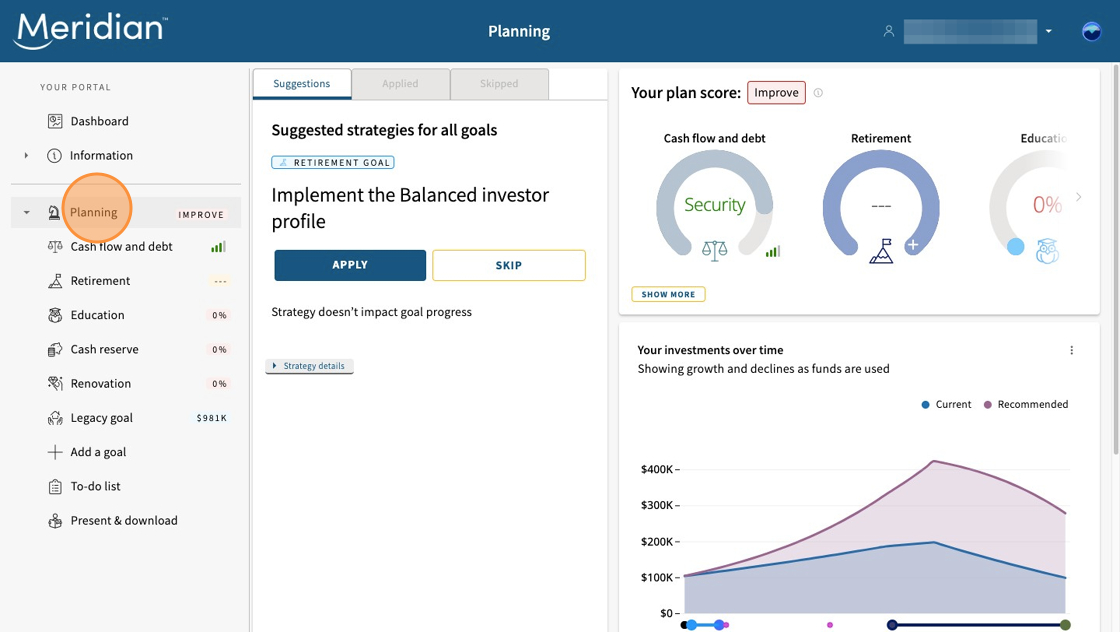
Now that you have entered your goals, the "Planning" tab will appear. Here, you will find suggested strategies based on your preferences to help you take action towards your goals. These may include savings tips, investment approaches, or planning adjustments tailored to your situation. Select the "Strategy details" button to learn more about what the suggested strategy means and how to implement it.
Then, you can choose to:
- Apply strategies that feel right for you.
- Skip any that you’re not ready to act on.
This flexibility allows you to build a plan that matches your comfort level and financial readiness.
Step 2: Generate a to-do list
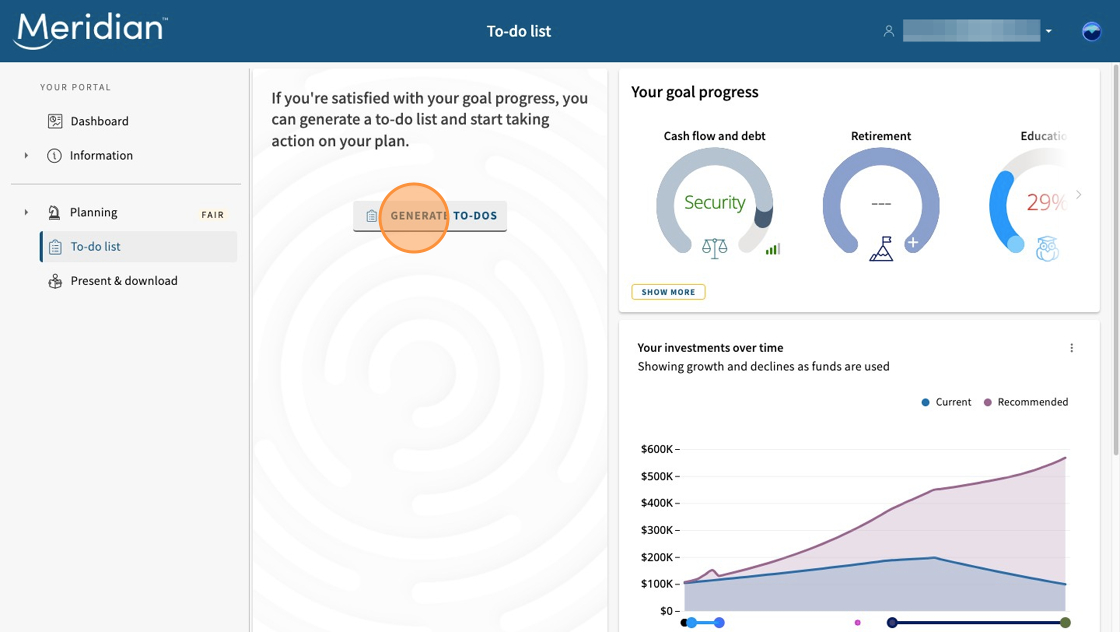
Once you've applied some strategies to your plan, you can generate a personalized to-do list to help you take action. This list includes practical steps created from your applied strategies to help you stay organized and move forward with confidence.
To generate your personalized to-do list, navigate to the "To-do list" tab and select "Generate to-dos."
Step 3: Review to-do list tasks
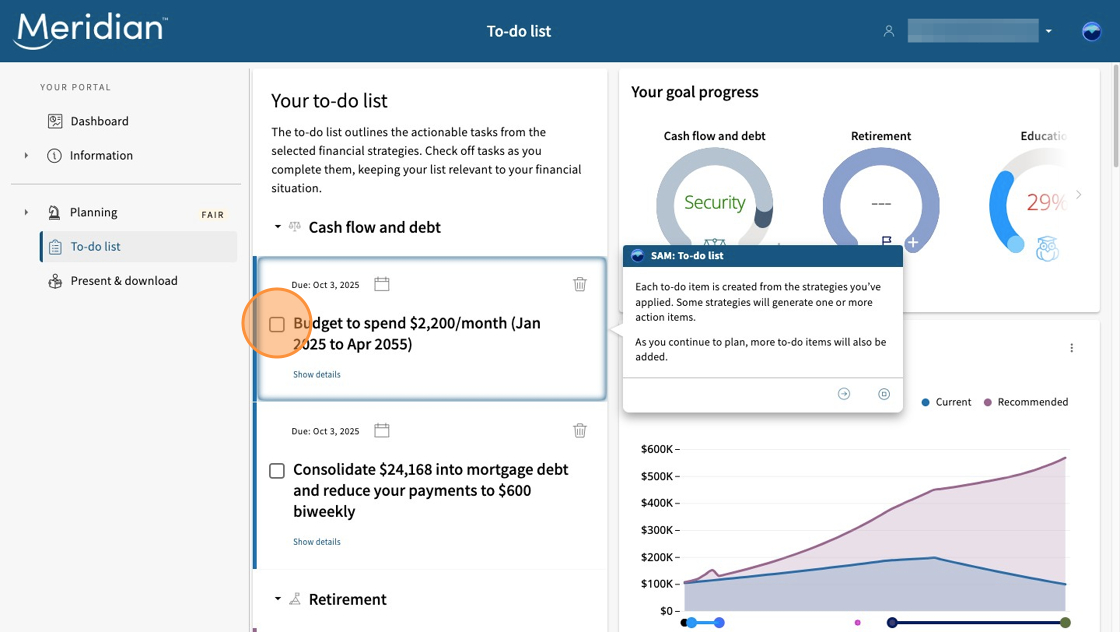
Once your personalized to-do list is populated, you’ll be able to:
- View details for each task to understand what’s involved.
- Adjust the due date for each task.
- Check the box next to each task once you've completed it.
- Delete items from your list if they’re no longer relevant or you’re not ready to take action.
This flexibility helps you stay organized and focused on what matters most.
Move on to the next step: Use the dashboard and other features
Learn more about using the planning tool
Get the most out of our planning tool by exploring more user guides and answers to frequently asked questions.
All planning tool user guides Frequently asked questions About the planning tool